
ECharts5
丰富的图表类型
- 提供开箱即用的 20 多种图表和十几种组件,并且支持各种图表以及组件的任意组合;
强劲的渲染引擎
- Canvas、SVG 双引擎一键切换,增量渲染等技术实现千万级数据的流畅交互;
简单易容,上手容易
- 直接通过编写配置,便可以生成各种图表,并且支持多种集成方式;
活跃的社区
- 活跃的社区用户保证了项目的健康发展,也贡献了丰富的第三方插件满足不同场景的需求;
使用
Echarts 可以轻松的互换SVG 渲染器 和 Canvas 渲染器。切换渲染器只须在初始化图表时设置 renderer 参数 为canvas或svg即可
echarts.init(document.getElementById("main"), null, {renderer: "canvas"});

echarts.init(document.getElementById("main"), "dark", {renderer: "svg"});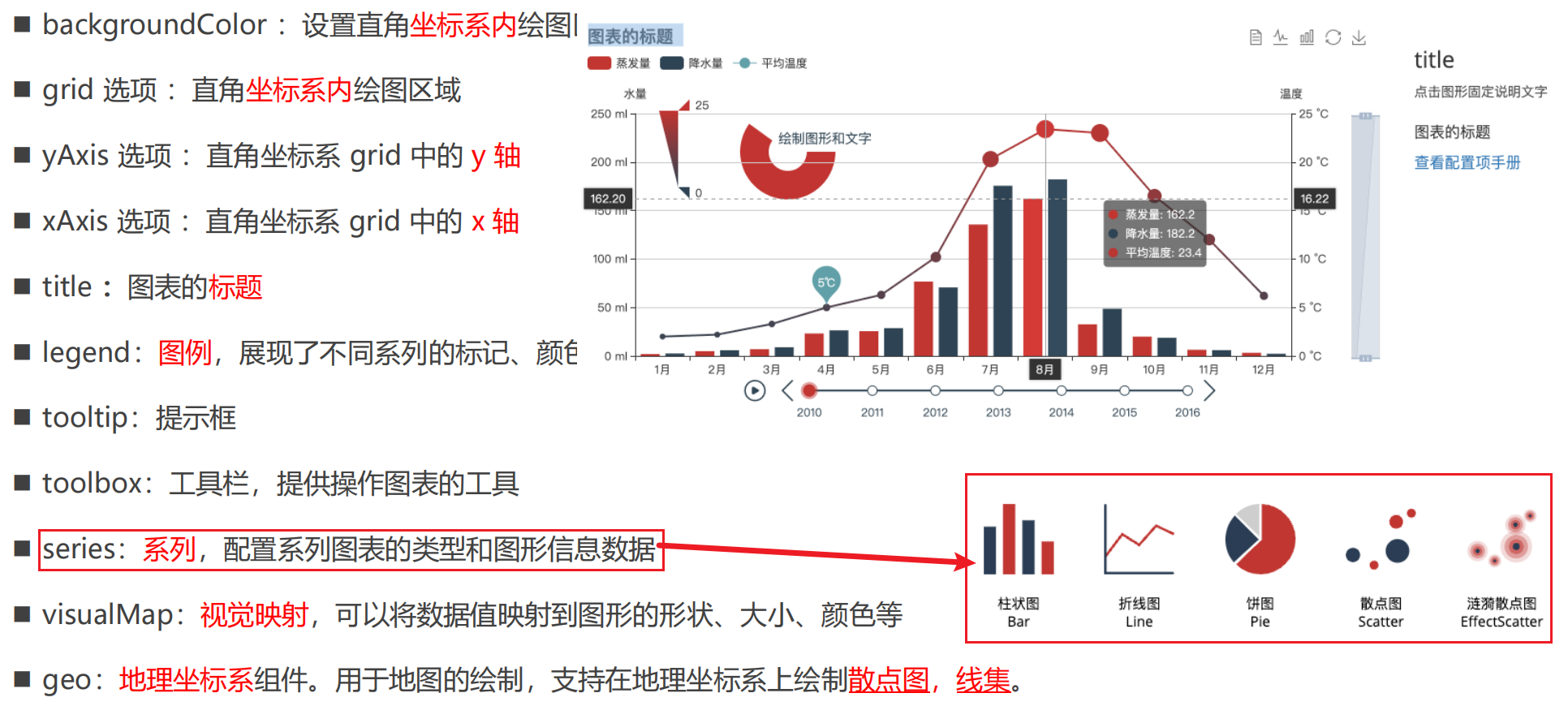
基本配置
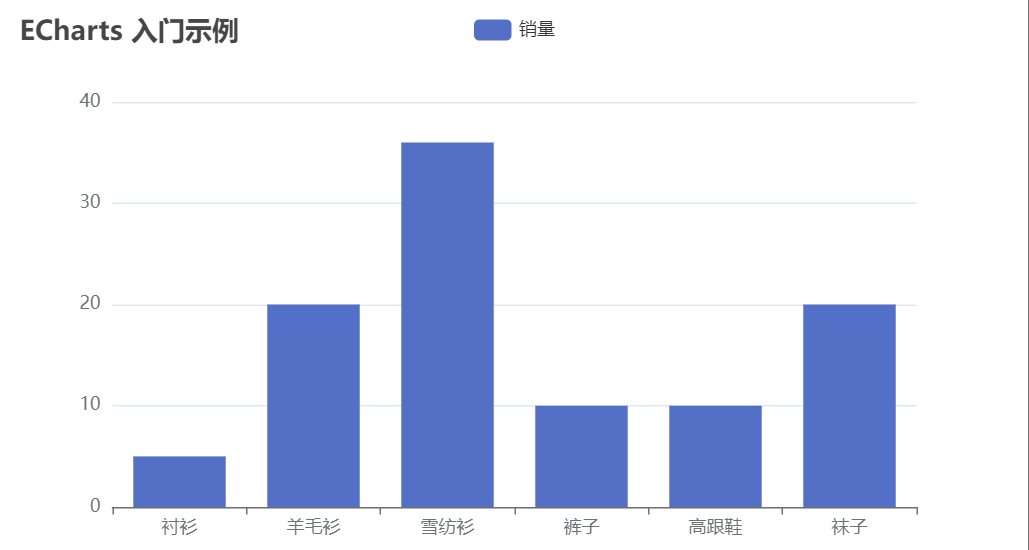
<!DOCTYPE html>
<html lang="en">
<head>
  <meta charset="UTF-8">
  <meta http-equiv="X-UA-Compatible" content="IE=edge">
  <meta name="viewport" content="width=device-width, initial-scale=1.0">
  <title>Document</title>
</head>
<body>

  <div id="main" style="height: 400px"></div>
  <script src="../libs/echarts-5.3.3.js"></script>
  <script>
    window.onload = function() {
      // 切换为svg的渲染器( 默认是canvas )
      let myChart = echarts.init(document.getElementById('main'), null, { renderer: 'svg' });
      let option = {
        xAxis: {
          data: ['衬衫', '羊毛衫', '雪纺衫', '裤子', '高跟鞋', '袜子']
        },
        yAxis: {},
        series: [
          {
            type: 'bar',
            data: [5, 20, 36, 10, 10, 20]
          }
        ]
      };
      myChart.setOption(option);
    }
  </script>
</body>
</html>
react中使用
import React, { FC, useEffect } from 'react'
import * as echarts from 'echarts';
import { chartOptions } from './options';

import styles from './index.module.scss'

type TeacherAgeDistributeProps = {

}

const TeacherAgeDistribute: FC<TeacherAgeDistributeProps> = (props: any) => {
  const [chartOptions, setChartOptions] = useState<any>(trendLineOptions);

  useEffect(() => {
    initChart()
  }, [chartOptions])

// const newChartOptions = {...chartOptions}
// if(res?.code === 200 && res?.data) {
//   const data = res.data
//   newChartOptions.series[0].data = data.map((item: any) => { return item.alarmTotalCount })
//   newChartOptions.series[1].data = data.map((item: any) => { return item.handleTotalCount })
//   newChartOptions.series[2].data = data.map((item: any) => { return item.unHandleTotalCount })
//   console.log(newChartOptions)
//   setChartOptions(newChartOptions)
// }


  const initChart = () => {
    if (document.getElementById('teacher_age_chart') == null) return
    echarts.dispose(document.getElementById('teacher_age_chart') as HTMLElement)
    const echart = echarts.init(document.getElementById('teacher_age_chart'))
    const option = chartOptions
    echart.setOption(option)
  }

  return (
    <div className={styles['school-overview']} id='teacher_age_chart'></div>
  )
}

export default TeacherAgeDistribute
通用使用组件
src/components/echartsDom/index.tsx
import {
  useEffect,
  useMemo,
  useState,
  ForwardRefRenderFunction,
  useImperativeHandle,
  forwardRef,
  Ref
} from 'react';
// @ts-ignore
import { uniqueId } from 'loadsh';
import * as echarts from 'echarts/core';
// 引入三款基础样式
import {
  BarChart,
  LineChart,
  PieChart
} from 'echarts/charts';
// 引入提示框,标题,直角坐标系,数据集,内置数据转换器组件,组件后缀都为 Component
import {
  TitleComponent,
  TooltipComponent,
  GridComponent,
  DatasetComponent,
  TransformComponent,
  LegendComponent
} from 'echarts/components';
// 标签自动布局、全局过渡动画等特性
import {
  LabelLayout,
  UniversalTransition
} from 'echarts/features';
// 引入渲染器
import { CanvasRenderer } from 'echarts/renderers';
import { EchartsDomProps } from './data';

import styles from './index.module.scss';

// 基础图表样式
const baseExcelStyle = [BarChart, LineChart, PieChart];

// 基础组建数组
const baseList = [
  ...baseExcelStyle,
  TitleComponent,
  TooltipComponent,
  GridComponent,
  DatasetComponent,
  TransformComponent,
  LegendComponent,
  LabelLayout,
  UniversalTransition,
  CanvasRenderer
];

const EchartsDom: ForwardRefRenderFunction<
  Ref<{ current: echarts.ECharts | null }>,
  EchartsDomProps
> = (props, ref) => {
  const {
    width = '200px',
    height = '100px',
    options,
    // 需要使用的 echarts 单个组件或者组件组成的数组
    echartsComList = [],
    onClick,
    boxStyle,
    echartsClick,
    echartsMouseover
  } = props;

  const [echartsObj, setEchartsObj] = useState<any>(null);

  // 通过 ref 暴露给父组件
  useImperativeHandle(ref, () => {
    return echartsObj;
  }, [echartsObj]);

  let id = useMemo(() => {
    return uniqueId('echarts_');
  }, []);

  useEffect(() => {
    initEachartsUse();
  }, [echartsComList]);

  useEffect(() => {
    let echartsObj = echarts.getInstanceByDom(
      document.getElementById(id) as HTMLElement
    );
    echartsObj?.clear();
    if (echartsObj == null) {
      echartsObj = echarts.init(
        document.getElementById(id) as HTMLElement
      );
    }
    // 使用 notMerge: true 确保配置被完全替换,包括函数
    options && echartsObj.setOption(options, true);
    // @ts-ignore
    echartsObj.on('click', echartsClick);
    // @ts-ignore
    echartsObj.on('mouseover', echartsMouseover);

    setEchartsObj(echartsObj);
    return () => {
      echartsObj.off('click', echartsClick);
      echartsObj.off('mouseover', echartsMouseover);
    };
  }, [options]);

  // 初始化 eacharts
  const initEachartsUse = () => {
    let comList = [];
    if (Array.isArray(echarts)) {
      comList = [...echartsComList, ...baseList];
    } else {
      comList = [echartsComList, ...baseList];
    }
    echarts.use(comList);
  };

  return (
    <div
      style={{
        width: `${width}`,
        height: `${height}`,
        ...boxStyle
      }}
      onClick={onClick}
      className={styles['echarts-dom-box']}
    >
      <div id={id} className={styles['echarts-content']} />
    </div>
  );
};

export default forwardRef<
  Ref<{ current: echarts.ECharts | null }>,
  EchartsDomProps
>(EchartsDom);
.echarts-dom-box {
padding: 5px;
box-sizing: border-box;
z-index: 30;
.echarts-content {
width: 100%;
height: 100%;
}
}组件使用
一般图表数据赋值流程:
- xAxis.data的字符串数组,横坐标确定
- 各个series[index]的data数据,各块数据的展示
chartOptions.ts
export const getChartOption = (data: any) => {
  const xAxisName = data?.length
    ? data.map((item: any, index: number) => {
        return item.name;
      })
    : [];

  const seriesData = data?.length
    ? data.map((item: any, index: number) => {
        return item.value;
      })
    : [];

  return {
    grid: {
      left: 0,
      top: '12%',
      right: '1%',
      bottom: '2%',
      containLabel: true
    },
    tooltip: {
      show: true,
      // 使用了 trigger ,一般也结合 axisPointer
      trigger: 'axis',
      backgroundColor: 'rgba(0, 76, 172, 0.90)',
      borderColor: 'rgba(32, 121, 229, 1)',
      borderWidth: 1,
      textStyle: {
        color: '#fff'
      },
      axisPointer: {
        type: 'line', // // 柱状图鼠标悬浮透明背景 (默认是竖线 line)  (横线 + 竖线 cross)  (横线 + 竖线 shadow) (cross)
        lineStyle: {
          color: 'rgba(201, 205, 212, 1)'
        }
      }
    },
    xAxis: {
      // show: false,
      type: 'category',
      data: xAxisName,
      axisLabel: {
        color: 'rgba(255, 255, 255, 0.70)'
      },
      axisLine: {
        show: false
      },
      axisTick: { show: false }
    },
    yAxis: {
      type: 'value',
      scale: true,
      minInterval: 1,
      splitNumber: 3,
      splitLine: {
        show: true,
        lineStyle: {
          color: 'rgba(130, 144, 157, 0.18)',
          type: 'dashed'
        }
      },
      axisLabel: {
        color: 'rgba(255, 255, 255, 0.70)'
        // formatter: function (value: number) {
        //   if (value < 10000) {
        //     return value
        //   } else {
        //     return value / 10000 + '万'
        //   }
        // }
      }
    },
    series: [
      {
        name: '学校数',
        data: seriesData,
        type: 'line',
        symbol: 'circle',
        symbolSize: 10,
        lineStyle: {
          color: 'rgba(55, 182, 255, 1)',
          width: 2
        },
        itemStyle: {
          // width: 10,
          borderWidth: 2,
          borderColor: '#fff',
          color: 'rgba(55, 182, 255, 1)'
        },
        areaStyle: {
          color: {
            type: 'linear',
            x: 0,
            y: 0,
            x2: 0,
            y2: 1,
            colorStops: [
              {
                offset: 0,
                color: 'rgba(55, 182, 255, 0.30)' // 0% 处的颜色
              },
              {
                offset: 1,
                color: 'rgba(55, 182, 255, 0)' // 100% 处的颜色
              }
            ],
            global: false // 缺省为 false
          }
        }
      }
    ]
  };
};
mobx/index.ts
import {
  observable,
  makeObservable,
  action,
  toJS,
  makeAutoObservable
} from 'mobx';
import request from '@/service/request';
import { Decrypt } from '@/utils/crypto';
import { stringify } from 'qs';

export class IndexMobx {
  chartData: any[] = [
    {
      name: '南昌市',
      value: 23131,
    },
    {
      name: '九江市',
      value: 24131,
    },
    {
      name: '景德镇市',
      value: 23131,
    }
  ];

  constructor() {
    makeAutoObservable(this);
  }

  setInfo = (info: Record<string, any>) => {
    Object.keys(info).forEach(key => {
      this[key as keyof typeof this] = info[key];
    });
  };

  getChartData = async (data: Object) => {
    const res: any = await request({
      url: ``,
      method: 'POST',
      data: {
        ...data
      }
    });
    if (res.data?.length) {
      const list = res.data.map(
        (item: any, index: number) => {
          return {
            name: item.year,
            value: item.schoolCnt
          };
        }
      );
      this.setInfo({ chartData: list });
    } else {
      this.setInfo({
        chartData: []
      });
    }
  };

  resetMobx = () => {
    this.setInfo({});
  };
}

export default new IndexMobx();
index.tsx
import React, { FC } from 'react';
import EchartsDom from '@/components/echartsDom';

type IndexProps = {

}

const Index: FC<IndexProps> = (props: any) => {
  const [chartOptionsState, setChartOptionsState] = useState(getChartOption(vm.chartData));

  useEffect(() => {
    vm.getChartData({})
  }, []);

  useEffect(() => {
    if (vm.chartData.length) {
      setChartOptionsState(getChartOption(vm.chartData))
    }
  }, [vm.chartData]);

  return (
    <div style={{ width: '500px', height: '500px' }}>

      {/* <EchartsDom width={'100%'} height={'100%'} options={getChartOption(vm.schoolCountTrend)}></EchartsDom> */}
        <EchartsDom
          width={'100%'}
          height={'100%'}
          {/* 注意不要直接使用options={getChartOption(vm.chartData)},否则会出现当界面中有其他数据变化时,会触发图表的不必要重新加载比如动画,通过useState控制图表options的配置项,自动优化展示 */}
          options={chartOptionsState}/>
    </div>
  )
}

export default Index
options配置项
Grid画布组件
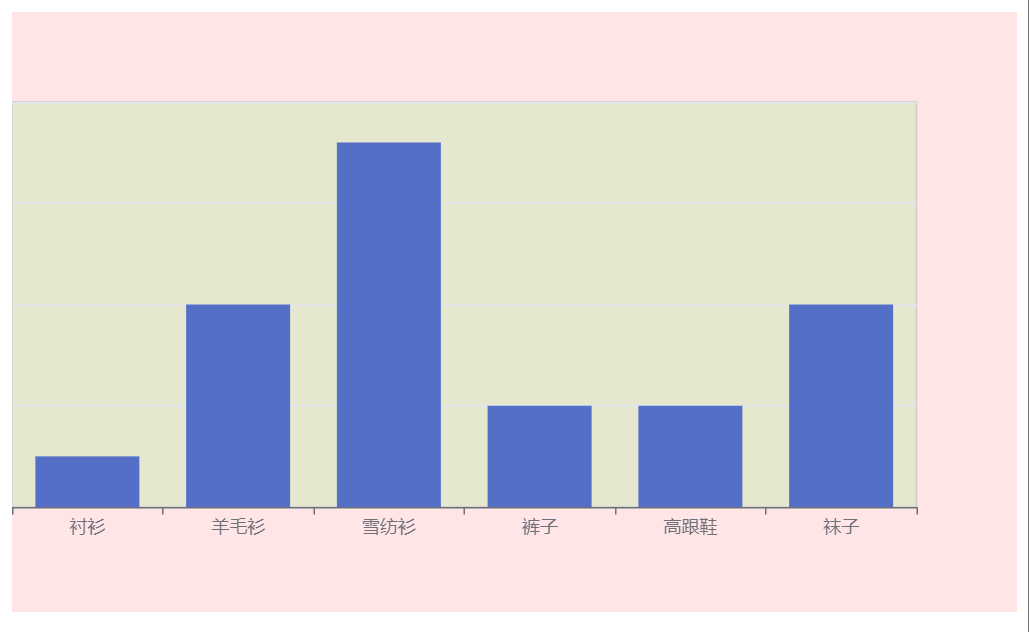
backgroundColor: "rgba(255, 0, 0, 0.1)",

grid: {
  show: true,
  backgroundColor: 'rgba(0, 255, 0, 0.1)',
  // grid展示的情况下,默认会有白边,可通过设置borderWidth为0进行消除
  borderWidth: 0,
  // top: 0,
  // bottom: 0,
  // 靠左且不显示Y轴内容
  left: 0,
  // right: 0,
  containLabel: false,
}
xAxis,yAxis横纵坐标
xAxis: {
  show: true,
  name: "类目坐标",
  type: "category", // 类目坐标才有data选项
  data: ["衬衫", "羊毛衫", "雪纺衫", "裤子", "高跟鞋", "袜子"],

  axisLine: { // 坐标轴轴线相关设置。
    show: true,
    lineStyle: {
      color: "red",
      width: 3,
    },
  },

  axisLabel: { // 坐标轴刻度标签的相关设置。
    show: true,
    // interval: 1, // label间隔数
    color: "green",
    fontSize: 16,
    formatter: function (value: any) {
      // 每5个字符换行
      return value.split('').reduce(function (
        accumulator: any,
        current: any,
        index: any
      ) {
        return (
          accumulator +
          (index !== 0 && index % 5 === 0 ? '\n' : '') +
          current
        );
      }, '');
    }
  },

  axisTick: {  // 坐标轴刻度相关设置。
    show: true,
    length: 10,
    lineStyle: {
      color: "blue",
      width: 3,
    },
  },

  splitLine: { // 坐标轴在 grid 区域中的分隔线。
    show: true,
    lineStyle: {
      color: "orange",
      width: 1,
    },
  }
},

// yAxis同理配置
series数据展示相关
series数组内可放多个配置项,多配置项一般在折线图中显示
1.data数据展示支持的编写方式
series: [
  {
    name: "产品销量柱形图",
    type: "bar",
    label: {
      show: true,
    },

    // 方式一:值数组
    // data: [5, 20, 36, 10, 10, 20],

    // 方式二:下标+值
    // data: [
    //   [0, 5],
    //   [1, 20],
    //   [2, 36],
    //   [3, 10],
    //   [4, 10],
    //   [5, 20],
    // ],


    // 方式三(推荐):对象数组
    data: [
      {
        value: 5,
        name: "衬衫", // 数据项名称, 比如pie系列 tooltip 需要用到
      },
      {
        value: 20,
        name: "羊毛衫",
      },
      {
        value: 36,
        name: "雪纺衫",
      },
      {
        value: 10,
        name: "裤子",
      },
      {
        value: 10,
        name: "高跟鞋",
      },
      {
        value: 20,
        name: "袜子",
      },
    ],


    // 方式四:对象数组+下标值方式
    // data: [
    //   {
    //     value: [0, 5], // 数组第一项为x轴值,第二项为y轴值
    //     name: "衬衫", // 数据项名称, 比如pie系列 tooltip 需要用到
    //   },
    //   {
    //     value: [1, 20],
    //     name: "羊毛衫",
    //   },
    //   {
    //     value: [2, 36],
    //     name: "雪纺衫",
    //   },
    //   {
    //     value: [3, 10],
    //     name: "裤子",
    //   },
    //   {
    //     value: [4, 10],
    //     name: "高跟鞋",
    //   },
    //   {
    //     value: [5, 20],
    //     name: "袜子",
    //   },
    // ],


    // 方式五(地理坐标系推荐) 三维图表
    // data: [
    //   {
    //     value: [0, 5, 500], // 第一项为x轴或纬度值,第二项为y或维度轴值,第三项以后为扩展值
    //     name: "衬衫", // 数据项名称, 比如pie系列 tooltip 需要用到
    //   },
    //   {
    //     value: [1, 20, 400],
    //     name: "羊毛衫",
    //   },
    //   {
    //     value: [2, 36, 200],
    //     name: "雪纺衫",
    //   },
    //   {
    //     value: [3, 10, 100],
    //     name: "裤子",
    //   },
    //   {
    //     value: [4, 10, 600],
    //     name: "高跟鞋",
    //   },
    //   {
    //     value: [5, 20, 300],
    //     name: "袜子",
    //   },
    // ],
  },
],
2.type 图表类型(line、bar、pie、scatter)
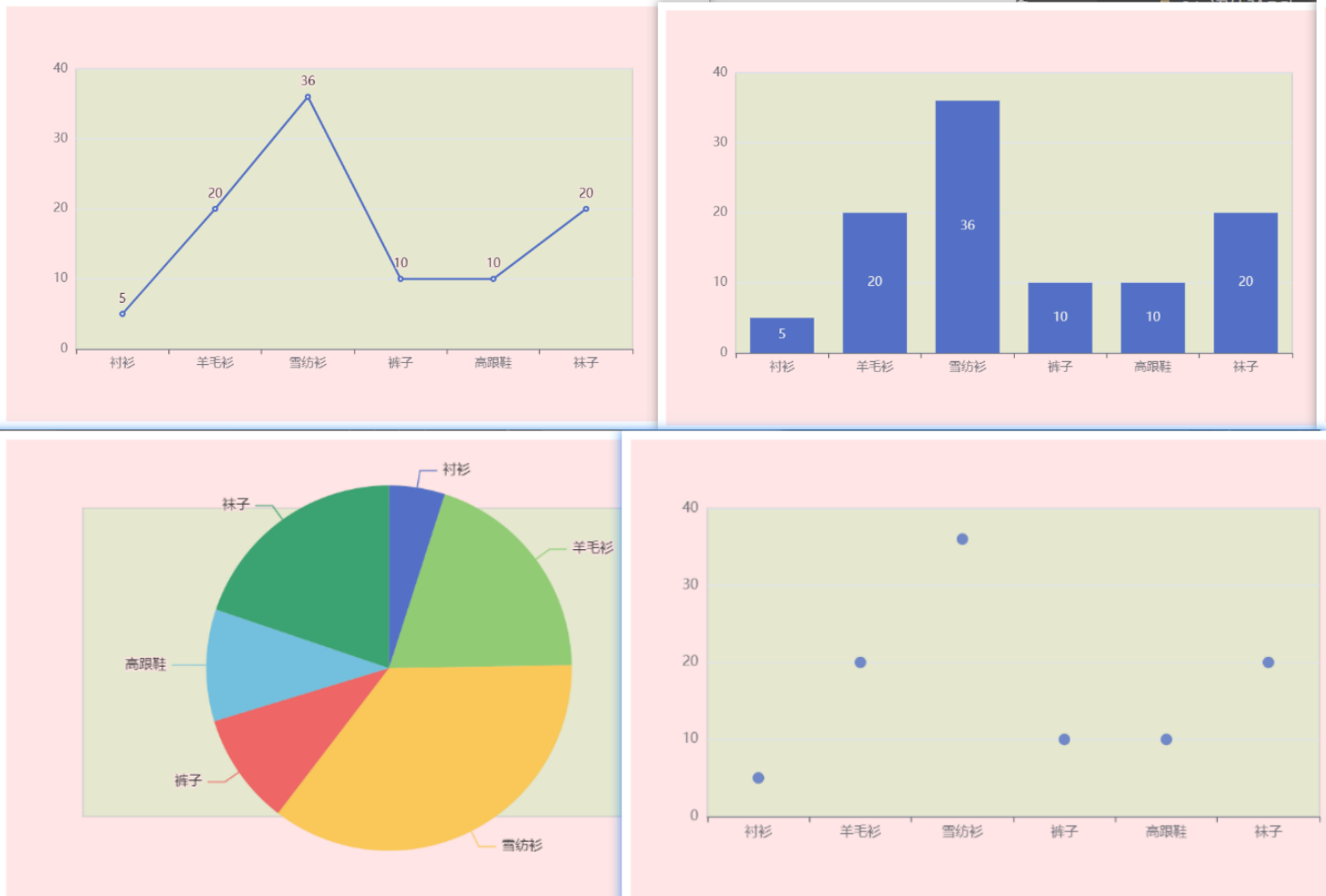
折线图 和 条型图
series: [
  {
    name: "产品销量柱形图",
    type: "line", // line  bar scatter pie
    data: [5, 20, 36, 10, 10, 20],
    label: { // 值显示
      show: true
    },
  },
],
饼图
series: [
  {
    name: "产品销量柱形图",
    type: "pie",

    // center设置饼图位置
    center: ["50%", "50%"], // 饼图的中心(圆心)坐标,数组的第一项是横坐标,第二项是纵坐标。

    // 百分比是参照容器高宽中较小一项( 直径 )
    radius: ["20%", "85%"], // 饼图的半径。数组的第一项是内半径,第二项是外半径。
    // area玫瑰图(南丁格尔图)。 圆心角一样,通过半径展现数据大小(默认false)
    roseType: "area",

    data: [
      {
        value: 5,
        name: "衬衫", // 数据项名称, 比如pie系列 tooltip 需要用到
      },
      {
        value: 20,
        name: "羊毛衫",
      },
      {
        value: 36,
        name: "雪纺衫",
      },
      {
        value: 10,
        name: "裤子",
      },
      {
        value: 10,
        name: "高跟鞋",
      },
      {
        value: 20,
        name: "袜子",
      },
    ]
  },
]
3.label( 优先级 ) 悬浮才显示效果
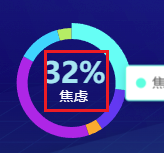
series: [
  {
    // name: 'Access From',
    type: 'pie',
    radius: ['40%', '50%'],
    center: ['20%', '50%'],
    avoidLabelOverlap: false,
    itemStyle: {
      borderRadius: 0
      // borderColor: '#0670B4',
      // borderWidth: 5
    },
    label: {
      show: false,
      position: 'center',
      textStyle: {
        //图例文字的样式
        rich: {
          a: {
            padding: [0, 0, 0, 10],
            fontSize: remSize(32),
            align: 'center',
            fontFamily: 'DIN-Bold, DIN',
            fontWeight: 'bold',
            // lineHeight: '32px',
            // textShadow: '0px 0px 12px rgba(0,49,79,0.8)',
            // backgroundColor:
            //   'linear-gradient(180deg, rgba(255,255,255,0.9) 0%, #00E0FF 100%)',
            // backgroundClip: 'text'
            color: '#fff'
          },
          b: {
            padding: [0, 0, 0, 0],
            align: 'center',
            fontSize: remSize(16),
            fontFamily:
              'Microsoft YaHei-Regular, Microsoft YaHei',
            fontWeight: 400,
            color: '#FFFFFF'
          }
        }
      },
      formatter: (e: any) => {
        let arr = [
          '{a|' + e.value + '%}',
          '\n',
          '{b|' + e.name + '}'
        ];
        //此处的a,b,c是textStyle里面配置的a,b,c,可以自定义
        return arr.join(' ');
      },
    },

    // emphasis:设置鼠标放到哪一块扇形上面的时候,扇形样式、阴影
    emphasis: {
      shadowBlur: remSize(20),
      shadowOffsetX: remSize(0),
      shadowColor: 'rgba(30, 144, 255,0.5)',
      label: {
        show: true,
        fontSize: remSize(16),
        fontFamily:
          'Microsoft YaHei-Regular, Microsoft YaHei',
        fontWeight: 400,
        color: '#FFFFFF'
      }
    },

    labelLine: {
      show: false
    },
    data: [
      {
        value: 32,
        name: '焦虑',
        itemStyle: { color: '#50FFDF' }
      },
      {
        value: 16,
        name: '强迫',
        itemStyle: { color: '#5A41F4' }
      },
      {
        value: 5,
        name: '人际关系',
        itemStyle: { color: '#FFA826' }
      },
      {
        value: 45,
        name: '躯体化障碍',
        itemStyle: { color: '#AD2FE8' }
      },
      {
        value: 15,
        name: '抑郁',
        itemStyle: { color: '#1ED6FF' }
      },
      {
        value: 5,
        name: '厌学',
        itemStyle: { color: '#B6EB61' }
      }
    ]
  }
]
series: [
{
name: "产品销量柱形图",
type: "bar",
barWidth: 17,
label: { // 系列图形上的文本标签
show: true,
position: [10, 10], // 支持的类型可以查文档,不同type的position的值会有些差异
color: "white",
fontSize: "20px",
},
data: [
{
value: 5,
// 优先级别更高
label: {
show: false,
},
},
....
],
},
],4.itemStyle数据样式
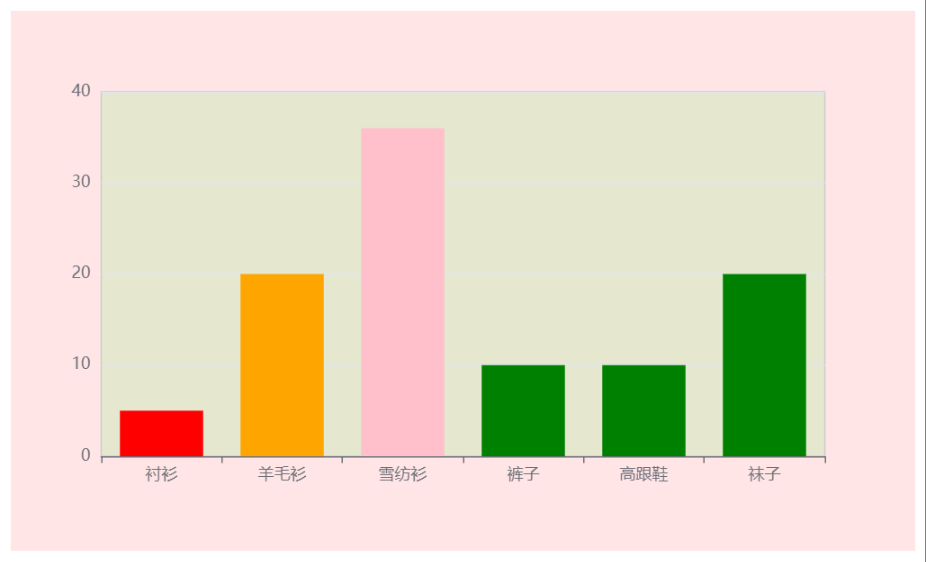
series: [
  {
    name: "产品销量柱形图",
    type: "bar",

    itemStyle: { // 系列图形的样式
      color: "green",
      // borderColor: "orange",
      // borderWidth: 4,
      // opacity: 0.4,
    },

     // 方式三(推荐)
    data: [
      {
        value: 5,
        name: "衬衫", // 数据项名称, 比如pie系列 tooltip 需要用到
        // label ....
        itemStyle: { // 系列图形的样式
          color: "red",
        },
      },
      {
        value: 20,
        name: "羊毛衫",
        itemStyle: { // 系列图形的样式
          color: "orange",
        },
      },
      {
        value: 36,
        name: "雪纺衫",
        itemStyle: { // 系列图形的样式
          color: "pink",
        },
      },
      {
        value: 10,
        name: "裤子",
      },
      {
        value: 10,
        name: "高跟鞋",
      },
      {
        value: 20,
        name: "袜子",
      },
    ],
  }
]
5.emphasis 高亮色
鼠标悬浮到图形元素上时,高亮的样式。
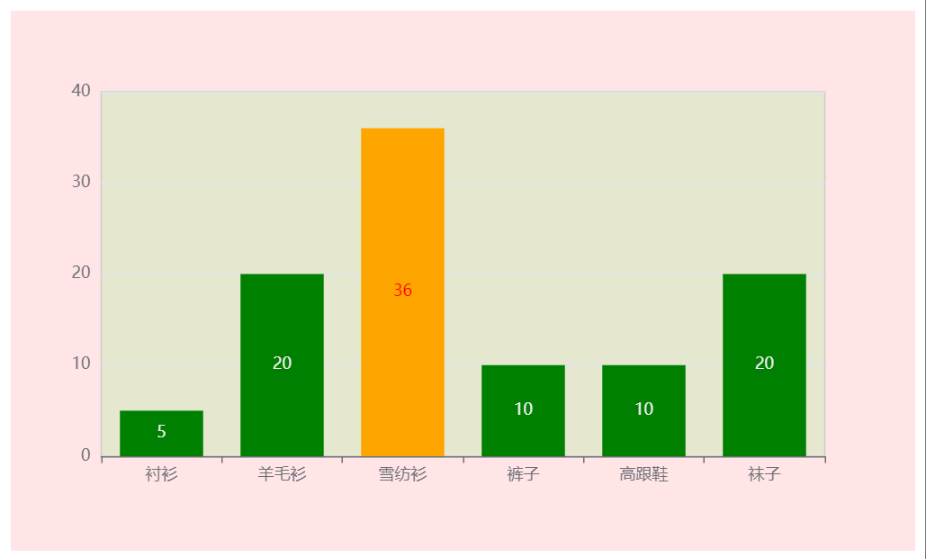
series: [
  {
    name: "产品销量柱形图",
    type: "bar",

    label: {
      show: true,
    },
    itemStyle: {
      color: 'green'
    },
    emphasis: { // 图形高亮( label、labelLine、itemStyle、lineStyle、areaStyle... )
      label: {
        show: true,
        color: 'red'
      },
      itemStyle: {
        color: 'orange'
      },
      // .....
    },

     // 方式三(推荐)
    data: [
      {
        value: 5,
        name: "衬衫", // 数据项名称, 比如pie系列 tooltip 需要用到

        emphasis: { // 图形高亮( label、labelLine、itemStyle、lineStyle、areaStyle... )
          label: {
            show: true,
            color: 'blue'
          },
          itemStyle: {
            color: 'pink'
          },
        },
      },
      {
        value: 20,
        name: "羊毛衫",
      },
      {
        value: 36,
        name: "雪纺衫",
      },
      {
        value: 10,
        name: "裤子",
      },
      {
        value: 10,
        name: "高跟鞋",
      },
      {
        value: 20,
        name: "袜子",
      },
    ],
  }
]
title标题与富文本样式
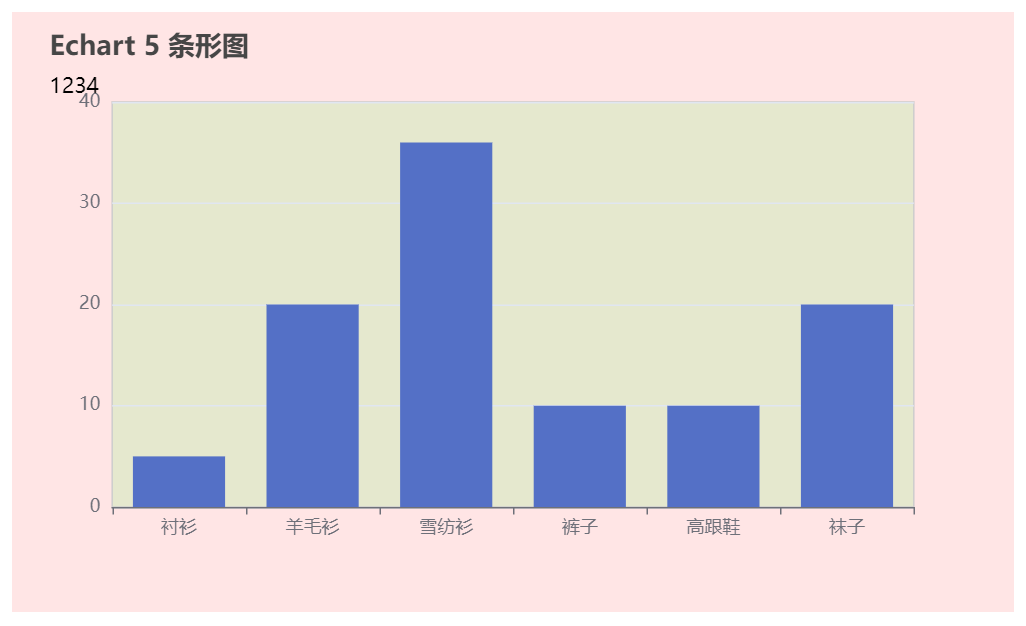
title: {
  show: true,
  text: "Echart 5 条形图",
  left: 20,
  top: 10,
  // subtext: '第二个标题'
  // ....
  subtext: `{totalSty|1234}`,
  subtextStyle: {
    rich: {
      totalSty: {
        fontSize: 14,
        color: "black",
        width: 90,
        align: "left",
      },
    },
  },
}
legend 图例组件
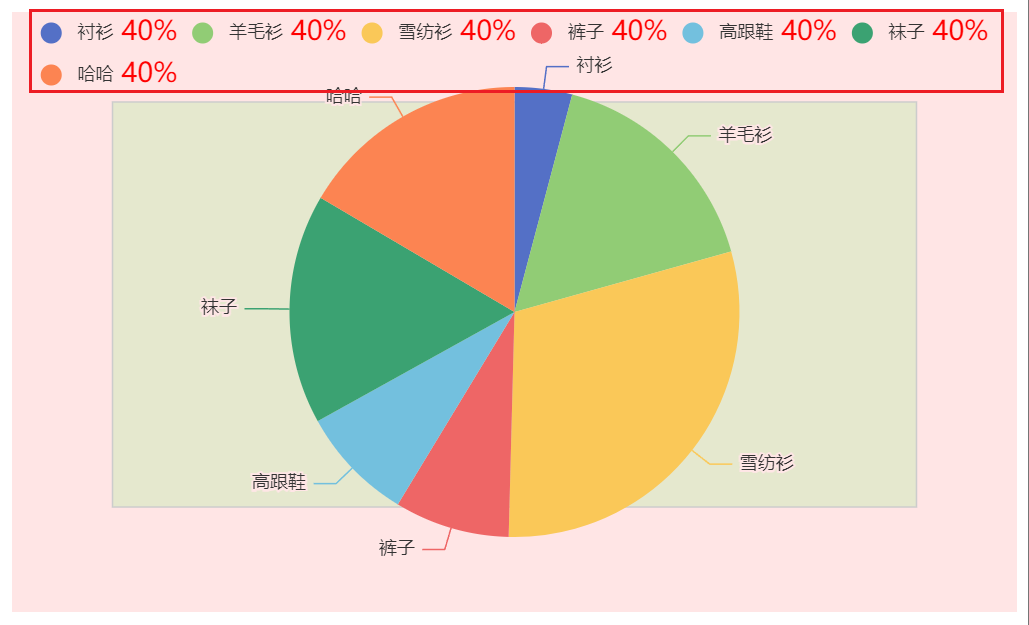
legend: {
  show: true,
  // width: 100,
  // itemWidth: 20
  icon: 'circle',  // round circle ...

  // formatter: 'liu-{name}', name能拿到series里data每个item的name
  formatter: function(name) {
    console.log(name)
    // 富文本的语法: {style_name|content}, 图例间隔也可通过formatter的方式   来间接设置间隔
    return name + '{percentageStyle| 40%}'
  },
  textStyle: {
    rich: { // 给富文本添加样式
      percentageStyle: {
        color: 'red',
        fontSize: 18
        // css 样式
      }
    }
  }
}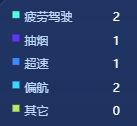
legend: {
  // type: 'scroll',
  orient: 'vertical', // horizontal水平 vertical竖直
  top: 'center',
  left: '50%',
  // x: '0%', // x y轴上的偏移量
  // y: '0%',
  itemGap: fontSize(12), // 图例间距
  selectedMode: true, // 可点击切换显示隐藏
  icon: 'square', // square正方形 rect矩形 默认圆角
  itemWidth: fontSize(8), // 正方形只需要设置一个宽度即可
  // itemHeight: fontSize(8),
  textStyle: {
    color: '#BCDBFF',
    height: 20, // 文本高度很重要,决定了文本与图例icon的竖向对齐!!!,富文本里用vertivalAlign: 'middle'会出现无效的效果
    rich: {
      // rich结合formatter实现左右布局
      uname: {
        width: fontSize(64),
        align: 'left'
      },
      unum: {
        color: '#fff',
        width: 40,
        align: 'right'
      }
    }
  },
  formatter(name: string) {
    const item = chartData.find(
      item => item.name === name
    );
    return `{uname|${name}}{unum|${item!.value}}`;
  }
},
tooltip悬浮提示
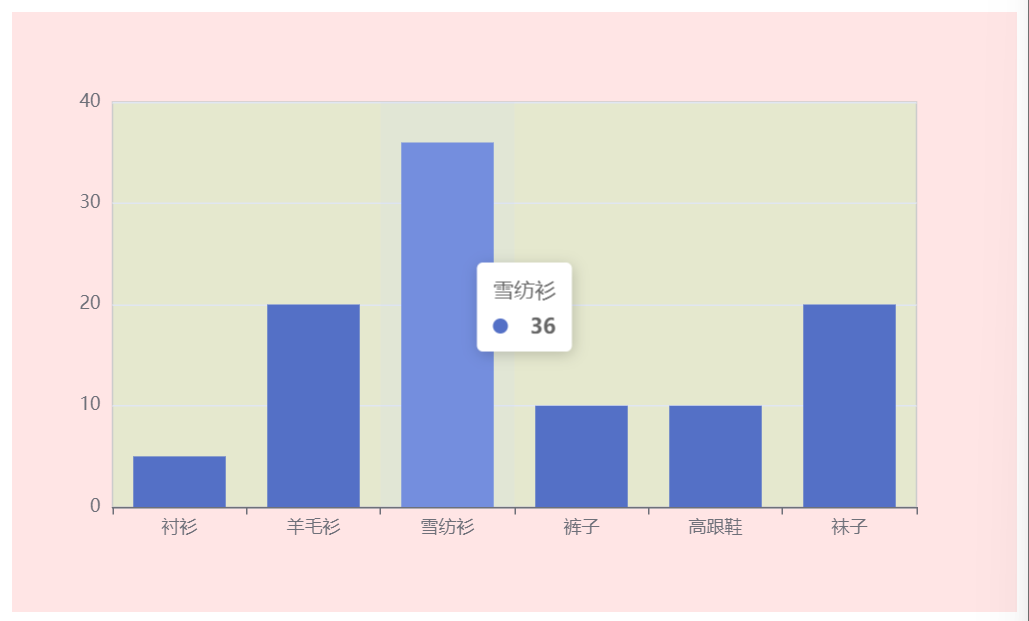
tooltip: {
  show: true,
  // 使用了 trigger ,一般也结合 axisPointer
  trigger: "axis",  // 默认是 item
  axisPointer: {
    type: "shadow", //  (默认是竖线 line)  (横线 + 竖线 cross)  (横线 + 竖线 shadow)
  },
  // formatter: '<div style="color:red">haha</div>'
}
tooltip.formatter(自定义tooltip)
  tooltip: {
    trigger: 'item',
    backgroundColor: 'rgba(0, 76, 172, 0.90)',
    borderColor: 'rgba(32, 121, 229, 1)',
    borderWidth: 1,
    textStyle: {
      color: '#fff'
    },
    padding: 12,
    formatter: function (params: any) {
      console.log("%c Line:203 🍿 params", "color:#2eafb0", params);
      // params 可能是对象或数组,根据图表类型调整
      return `<div>
        <div style="display: flex;justify-content: flex-start;align-items: center;gap: 6px;"><div style="width: 10px;height: 10px;border-radius: 5px;background-color: ${params.color}"></div><div>${params.seriesName}</div></div>
        <div style="padding-top: 5px;">${params.name}:<span style="font-weight: bold;">${params.value}人</span></div>
        <div>占比:<span style="font-weight: bold;">${params.percent}%</span></div>
      </div>`;
    },
  },
Color的渐变色
对象配置方式( 推荐 )
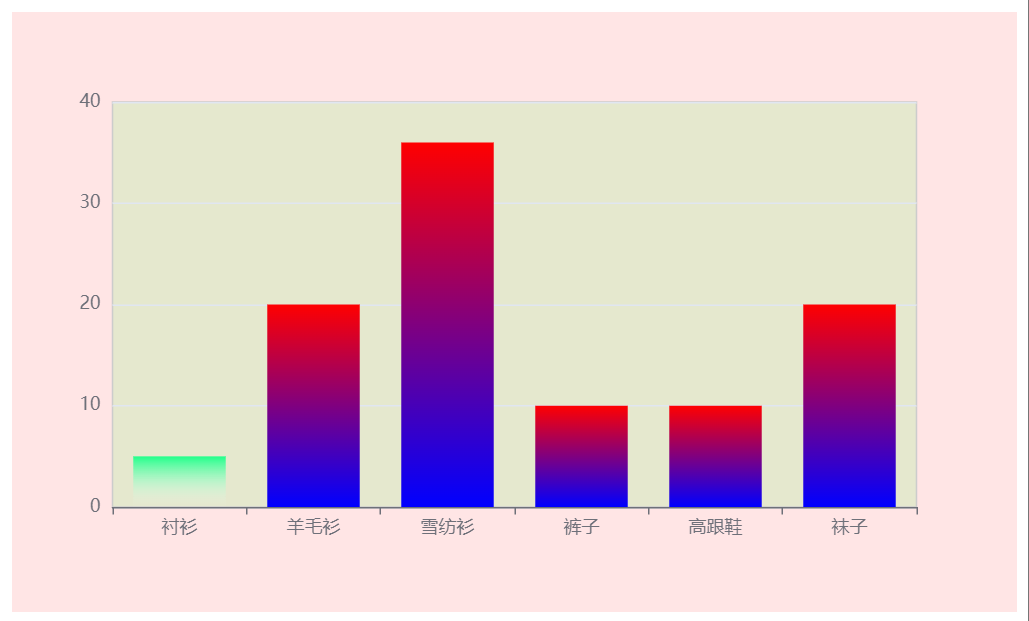
series: [
  {
    type: 'bar',
    // 图形的颜色
    itemStyle: {
      // 1. 对象方式实现渐变
      color: {
        // 渐变
        type: "linear",
        // 方向
        x: 0, y: 0, x2: 0, y2: 1,
        colorStops: [
          {
            offset: 0,
            color: "red",
          },
          {
            offset: 1,
            color: "blue",
          },
        ],
      }
    },
    data: [
      {
        value: 5,
        name: "衬衫", // 数据项名称, 比如pie系列 tooltip 需要用到
         // 图形的颜色
        itemStyle: {
          // 2. new echarts方式实现渐变
         color: new echarts.graphic.LinearGradient(
            0, 0, 0, 1,
            [
              {
                offset: 0,
                color: "#20FF89",
              },
              {
                offset: 1,
                color: "rgba(255, 255, 255, 0)",
              },
            ],
            false
          ),
        },
      },
      {
        value: 20,
        name: "羊毛衫",
      },
      {
        value: 36,
        name: "雪纺衫",
      },
      {
        value: 10,
        name: "裤子",
      },
      {
        value: 10,
        name: "高跟鞋",
      },
      {
        value: 20,
        name: "袜子",
      },
    ]
  }
]
横坐标全显示(旋转,手动换行)
    xAxis: {
      type: 'category',
      data: ['长且多的标签长且多的标签', '长且多的标签长且多的标签', '长且多的标签长且多的标签', '长且多的标签长且多的标签', '长且多的标签长且多的标签', '长且多的标签长且多的标签', '长且多的标签长且多的标签','长且多的标签长且多的标签','长且多的标签长且多的标签','长且多的标签长且多的标签','长且多的标签长且多的标签'],
      axisTick: {
        show: false
      },
      axisLabel: {
        // rotate: 26, // 设置旋转展示
        interval: 0,
        textStyle: {
          color: '#DEE9FF'
        },
        formatter: function (value: any) {
          // 每5个字符换行
          return value.split('').reduce(function (
            accumulator: any,
            current: any,
            index: any
          ) {
            return (
              accumulator +
              (index !== 0 && index % 5 === 0 ? '\n' : '') +
              current
            );
          }, '');
        }
      },
    },
图表添加图片展示
graphic
    graphic: {
      type: 'image',
      id: 'centerImage',
      left: '10%', // 与饼图中心对齐
      top: '50%',
      style: {
        image: 'https://z1.ax1x.com/2023/11/09/pi31xSS.png',
        width: 80,
        height: 80
      },
      position: [0, 0] // 向左向上移动图片宽度和高度的一半,使图片中心与饼图中心重合
    },
graphic添加图表的其中图片居中展示
const pieCenterX = vwNum(475) * 0.3; // 30% 位置
  const pieCenterY = vhNum(248) * 0.5; // 50% 位置
  const imgWidth = vwNum(140);
  const imgHeight = vhNum(140);

    graphic: {
      type: 'image',
      id: 'centerImage',
      left: pieCenterX - imgWidth / 2, // 与饼图中心对齐
      top: pieCenterY - imgHeight / 2,
      style: {
        image:
          'https://s21.ax1x.com/2025/10/11/pVH7z6O.png',
        width: imgWidth,
        height: imgHeight
      }
    },
    series: [
      {
        name: '品类占比',
        type: 'pie',
        center: ['30%', '50%'],
        radius: ['65%', '80%'],
        avoidLabelOverlap: false,
        label: {
          show: false
        },
        labelLine: {
          show: false
        },
        data: seriesData
      }
    ]
series内部添加图片
series: [
      {
        name: '品类占比',
        type: 'pie',
        center: ['30%', '50%'],
        radius: ['60%', '80%'],
        avoidLabelOverlap: false,
        // label: {
        //   show: false
        // },
        labelLine: {
          show: false
        },
        label: {
          show: true,
          position: 'center',
          formatter: [
            '{a|}', // 占位符
            '{b|}', // 占位符
            '{img|}'
          ].join('\n'),
          rich: {
            a: {
              height: 0
            },
            b: {
              height: 0
            },
            img: {
              backgroundColor: {
                image:
                  'https://z1.ax1x.com/2023/11/09/pi31xSS.png'
              },
              height: 80,
              width: 80
            }
          }
        },
        data: seriesData
      }
    ]
文本居于图表中间居中
方案一(title.text)
  // 计算总数用于百分比显示
  const total =
    data?.reduce(
      (sum: number, cur: any) => sum + parseInt(cur.value),
      0
    ) || 0;

  // totalLeftWidth用于计算总数显示文本的位置不同长度的文本左侧距离不一样
  const totalString = total + '';
  const vwValues = [
    9.5, 16, 15, 14, 11.4, 9.5, 7.7, 7, 3.5
  ];
  const totalLeftPercent = vwNum(
    vwValues[totalString.length] ?? 40
  );

title: [
      {
        text: new Intl.NumberFormat('zh-CN').format(total),
        top: '35%',
        // left: `calc('9.5%' + totalLeftWidth)`,
        left: `${totalLeftPercent}`, // 尽量用数值,用百分比在不同分辨率下偏差较大
        align: 'center',
        textStyle: {
          position: 'relative',
          fontSize: fontSize(20),
          fontFamily: 'DIN-Bold, DIN',
          fontWeight: 'bold',
          color: 'rgba(0, 93, 255, 1)', // 在这里设置颜色
          lineHeight: vhNum(20)
        }
      },
      {
        text: '供应商总数',
        top: '49%',
        left: '9.3%',
        textStyle: {
          fontSize: fontSize(14),
          fontFamily:
            'Microsoft YaHei-Regular, Microsoft YaHei',
          fontWeight: 'bold',
          color: 'rgba(54, 64, 79, 1)', // 在这里设置颜色
          lineHeight: vhNum(20)
        }
      }
    ],
方案二(series.label)(推荐)
    series: [
      // 小学圆环图
      {
        name: '小学',
        type: 'pie',
        padAngle: 1,
        radius: ['50%', '65%'],
        center: ['28%', '50%'],
        avoidLabelOverlap: true,
        itemStyle: {
          borderRadius: 0,
          borderWidth: 0, // 去掉边框避免干扰
          shadowBlur: 5,
          shadowColor: 'rgba(0, 0, 0, 0.1)'
        },
        label: {
          show: true,
          position: 'outside',
          formatter: function (params: any) {
            // 当值很小时不显示标签
            if (params.percent < 5) return '';

            if (params.name === '留守儿童') {
              return `{name|${params.name}}\n{value|${primaryLeftBehindPercent}}`;
            } else {
              return `{name|${params.name}}\n{value|${primaryNonLeftBehindPercent}}`;
            }
          },
          alignTo: 'none', // 改为none,避免自动对齐
          margin: 8, // 增加边距
          lineHeight: 18,
          fontSize: 12,
          fontWeight: 'normal',
          rich: {
            name: {
              color: '#DEE9FF',
              fontSize: 11,
              lineHeight: 16,
              padding: [2, 0]
            },
            value: {
              color: function () {
                // 直接返回颜色,不依赖params
                return '#FFFFFF';
              },
              fontSize: 12,
              lineHeight: 18,
              fontWeight: 'bold',
              padding: [0, 0, 2, 0]
            }
          }
        },
        labelLine: {
          show: true,
          length: 4, // 第一段引导线长度
          length2: 4, // 第二段引导线长度
          smooth: false, // 改为直线更清晰
          minTurnAngle: 0, // 最小转折角度
          lineStyle: {
            width: 1,
            color: 'rgba(255, 255, 255, 0.5)',
            type: 'solid'
          },
          showAbove: true
        },
        emphasis: {
          scale: false, // 关闭放大效果避免干扰
          label: {
            show: true,
            fontSize: 13,
            color: '#FFFFFF'
          },
          itemStyle: {
            shadowBlur: 10,
            shadowOffsetX: 0,
            shadowColor: 'rgba(0, 0, 0, 0.3)'
          }
        },
        data: [
          {
            value: primaryLeftBehind,
            name: '留守儿童',
            itemStyle: {
              color: '#39CA8E'
            }
          },
          {
            value: primaryNonLeftBehind,
            name: '非留守儿童',
            itemStyle: {
              color: '#0085FF'
            }
          }
        ]
      },
      // 添加series来显示圆环中间的文字
      {
        type: 'pie',
        radius: ['0%', '45%'],
        center: ['28%', '50%'], // center保持一致
        label: {
          show: true,
          position: 'center', // 居中
          formatter: function () {
            return `{title|农村小学}\n{title|在校生总数}\n{value|${primaryTotal.toLocaleString()}}`;
          },
          rich: {
            title: {
              color: '#DEE9FF',
              fontSize: 14,
              fontWeight: 'normal',
              lineHeight: 20
            },
            value: {
              color: '#FFFFFF',
              fontSize: 24,
              fontWeight: 'bold',
              lineHeight: 30
            },
            percent: {
              color: '#DEE9FF',
              fontSize: 12,
              fontWeight: 'normal',
              lineHeight: 20
            }
          }
        },
        data: [
          { value: 1, name: '' }
        ],
        itemStyle: {
          color: 'transparent'
        },
        silent: true
      },
    ]
dataZoom坐标滚动
    dataZoom: [
      {
        type: 'slider',
        show: true,
        xAxisIndex: [0],
        start: 0,
        end: 20, // 初始显示20%的数据
        bottom: '5%',
        height: 20
      },
      {
        type: 'inside',
        xAxisIndex: [0],
        start: 0,
        end: 100
      }
    ],
鼠标移入时展示滚动条,移出时隐藏
const chartDom = document.getElementById('mainChart');
const chartRef = useRef<any>(echarts.init(chartDom)); // chartRef.current为echarts实例

  useEffect(() => {
    if (!chartRef.current) return;

    const chartInstance = chartRef.current;
    const dom = chartInstance.getDom();
    console.log("初始化图表事件监听");
    const handleMouseEnter = () => {
      chartInstance.setOption({ dataZoom: [{ show: true }] });
    };
    const handleMouseLeave = () => {
      chartInstance.setOption({ dataZoom: [{ show: false }] });
    };

    // 添加事件监听
    dom.addEventListener('mouseenter', handleMouseEnter);
    dom.addEventListener('mouseleave', handleMouseLeave);

    // 清理函数
    return () => {
      console.log("清理图表事件监听");
      dom.removeEventListener('mouseenter', handleMouseEnter);
      dom.removeEventListener('mouseleave', handleMouseLeave);
    };
  }, [chartRef.current]);
常用图表示例
1.柱形图
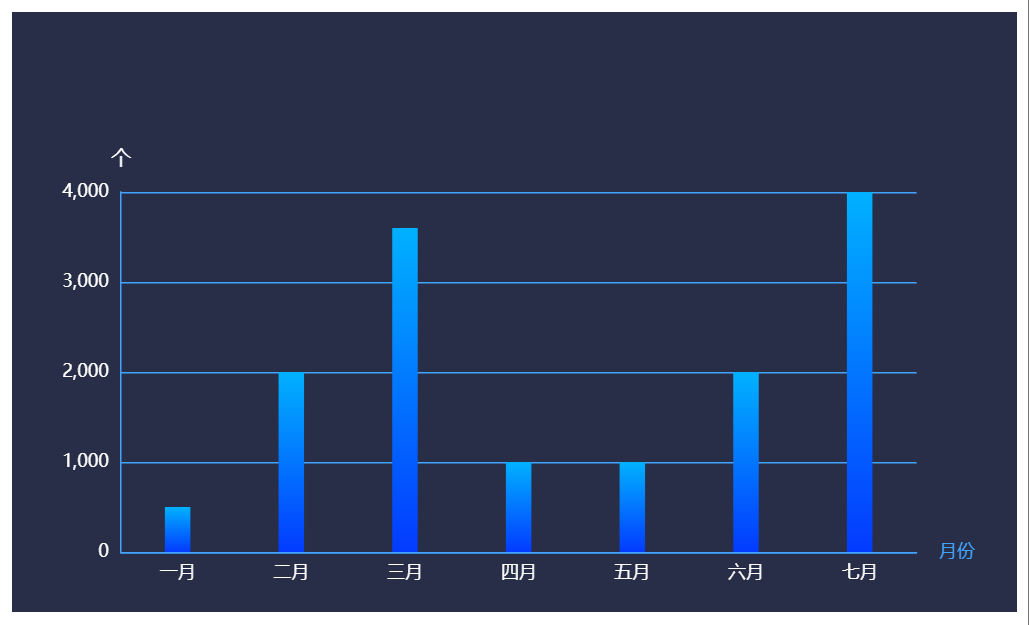
let option = {
  backgroundColor: "rbg(40,46,72)",
  grid: {
    left: "5%",
    right: "6%",
    top: "30%",
    bottom: "5%",
    containLabel: true, // grid 区域是否包含坐标轴的刻度标签
  },
  tooltip: {},
  xAxis: {
    name: "月份",
    axisLine: {
      show: true,
      lineStyle: {
        color: "#42A4FF",
      },
    },
    axisTick: {
      show: false,
    },
    axisLabel: {
      color: "white",
    },

    data: ["一月", "二月", "三月", "四月", "五月", "六月", "七月"],
  },
  yAxis: {
    name: "个",
    nameTextStyle: {
      color: "white",
      fontSize: 13,
    },
    axisLine: {
      show: true,
      lineStyle: {
        color: "#42A4FF",
      },
    },
    axisTick: {
      show: false,
    },
    splitLine: {
      show: true,
      lineStyle: {
        color: "#42A4FF",
      },
    },
    axisLabel: {
      color: "white",
    },
  },
  series: [
    {
      name: "销量",
      type: "bar",
      barWidth: 17,
      showBackground: false, // 是否显示柱条的背景色,默认不显示
      itemStyle: {
        color: {
          type: "linear",
          x: 0,
          y: 0,
          x2: 0,
          y2: 1,
          colorStops: [
            {
              offset: 0,
              color: "#01B1FF", // 0% 处的颜色
            },
            {
              offset: 1,
              color: "#033BFF", // 100% 处的颜色
            },
          ],
          global: false, // 缺省为 false
        },
      },
      data: [500, 2000, 3600, 1000, 1000, 2000, 4000],
      // 显示柱状条的数值
      label: {
        show: true,
        position: 'right',
        textStyle: {
          color: '#fff'
        }
      }
    },
  ],
};
{
  backgroundColor: 'transparent',
  color: ['#153238'],
  grid: {
    containLabel: true,
    left: '-11%',
    right: '2.5%',
    bottom: '0%',
    top: '2%'
  },
  tooltip: {
    show: true,
    trigger: 'axis',
    backgroundColor: 'rgba(0, 0, 0, 0.6)',
    borderColor: 'transparent',
    textStyle: {
      color: '#fff'
    },
    axisPointer: {
      type: 'shadow'
    }
  },

  yAxis: {
    type: 'category',
    data: [
      '60-64岁',
      '55-59岁',
      '50-54岁',
      '45-49岁',
      '40-44岁',
      '35-39岁',
      '30-34岁',
      '25-29岁',
      '65岁以上',
      '60岁以上',
      '29岁以下',
      '24岁以下'
    ],
    axisLine: {
      show: true,
      lineStyle: {
        color: 'rgba(201, 205, 212, 1)'
      }
    },
    // 竖坐标文字
    axisLabel: {
      width: 60,
      height: -16,
      lineHeight: -16,
      show: true,
      color: 'rgba(134, 144, 156, 1)',
      fontSize: 10,
      align: 'left',
      verticalAlign: 'top',
      margin: 0,
      padding: [0, 0, 0, 0]
    },

    lineStyle: {
      color: 'rgba(201, 205, 212, 1)',
      width: remSize(1),
      type: 'solid'
    },
    axisTick: {
      show: false,
      length: 5
    }
  },
  xAxis: {
    type: 'value',
    // name: '人',
    splitNumber: 3,

    axisLabel: {
      color: 'rgba(134, 144, 156, 1)',
      // fontFamily: 'HarmonyOS Sans',
      fontSize: 10,
      splitLine: {
        show: true,
        lineStyle: {
          type: 'dashed',
          color: 'rgba(119, 132, 158, 0.4)'
        }
      }
    },
    splitLine: {
      //网格线
      show: true, //是否显示
      lineStyle: {
        //网格线样式
        color: '#e6e7eb', //网格线颜色
        width: 1, //网格线的加粗程度
        type: 'dashed' //网格线类型
      }
    }
  },
  series: [
    {
      data: [0.15, 0.15, 0.15, 0.15, 0.15, 0.15, 0.15, 0.15, 0.28, 0.30, 0.36, 0.38],
      type: 'bar',
      showBackground: true, // 是否显示柱条的背景色,默认不显示
      backgroundStyle: {
        color: 'rgba(218, 230, 247, 1)',
        borderRadius: [0, 2, 2, 0]
      },
      barWidth: 6, //---柱形宽度
      barCategoryGap: 4,
      barGap: '30%',
      itemStyle: {
        normal: {
          color: 'rgba(64, 158, 255, 1)'
        }
      },
      // 柱状图上文字
      label: {
        show: true,
        position: 'right',
        offset: [-14, -10],
        textStyle: {
          color: 'black'
        },
        formatter: (e: any) => {
          console.log(e)
          return e.value + '万'
        }
      }
    }
  ]
}
2.折线背景图
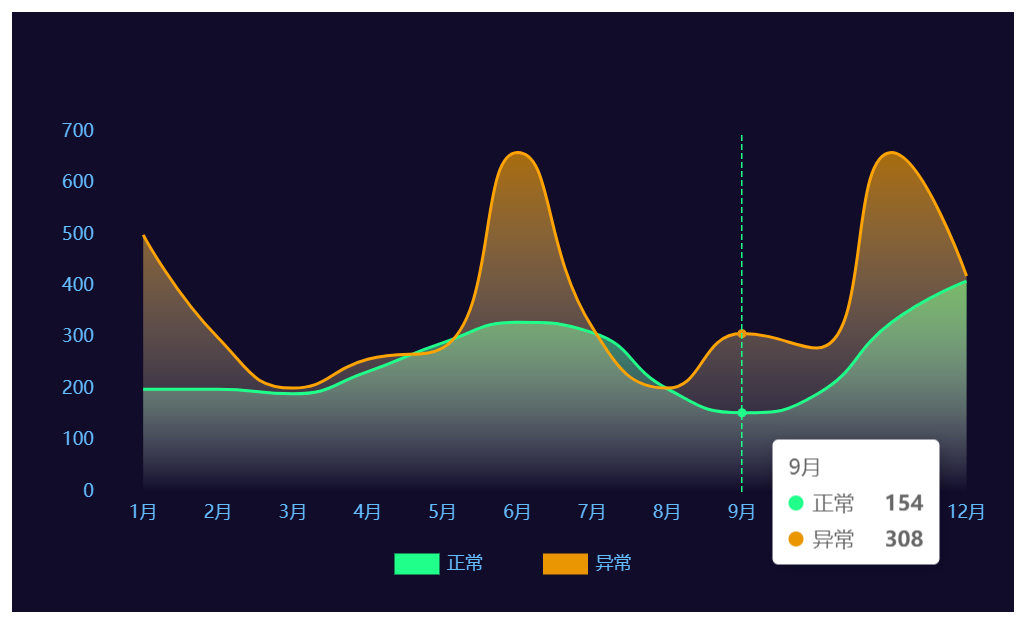
let option = {
  grid: {
    left: "5%",
    right: "1%",
    top: "20%",
    bottom: "15%",
    containLabel: true, // grid 区域是否包含坐标轴的刻度标签
  },
  legend: {
    bottom: "5%",
    // 图例样式
    itemGap: 40,
    itemWidth: 30,
    itemHeigth: 12,

    textStyle: {
      color: "#64BCFF",
    },
    icon: "rect",
  },
  tooltip: {
    trigger: "axis",
    axisPointer: {
      type: "line",
      lineStyle: {
        color: "#20FF89",
      },
    },
  },
  xAxis: [
    {
      type: "category",
      axisLine: {
        show: false,
      },
      axisLabel: {
        color: "#64BCFF",
      },
      splitLine: {
        show: false,
      },
      axisTick: {
        show: false,
      },
      data: [ "1月", "2月", "3月", "4月", "5月", "6月", "7月", "8月", "9月", "10月", "11月", "12月" ]
    },
  ],
  yAxis: [
    {
      type: "value",
      splitLine: {
        show: false,
      },
      axisLine: {
        show: false,
      },
      axisLabel: {
        show: true,
        color: "#64BCFF",
      },
    },
  ],
  series: [
    // 第一条折线图
    {
      name: "正常",
      type: "line",
      smooth: true,  // 是否平滑曲线显示。
      symbolSize: 5, // 标记的大小
      showSymbol: false,

      itemStyle: {
        color: "#20FF89",
      },
      // 区域填充样式。设置后显示成区域面积图。
      areaStyle: {
        color: new echarts.graphic.LinearGradient(
          0, 0, 0, 1,
          [
            {
              offset: 0,
              color: "#20FF89",
            },
            {
              offset: 1,
              color: "rgba(255, 255, 255, 0)",
            },
          ],
          false
        ),
      },
      data: [200, 200, 191, 234, 290, 330, 310, 201, 154, 190, 330, 410],
    },

    // 第二条折线图 (  n 个系列图 )
    {
      name: "异常",
      type: "line",
      smooth: true, // 是否平滑曲线显示。
      symbolSize: 5, // 标记的大小,可以设置成诸如 10 这样单一的数字
      showSymbol: false, // 是否显示 symbol, 如果 false 则只有在 tooltip hover 的时候显示。
      itemStyle: {
        // 折线的颜色
        color: "#EA9502",
      },
      // 折线区域的颜色
      areaStyle: {
        color: {
          type: "linear",
          x: 0,
          y: 0,
          x2: 0,
          y2: 1,
          colorStops: [
            {
              offset: 0,
              color: "#EA9502",
            },
            {
              offset: 1,
              color: "rgba(255, 255, 255, 0)",
            },
          ],
        },
      },
      data: [500, 300, 202, 258, 280, 660, 320, 202, 308, 280, 660, 420],
    },
  ],
}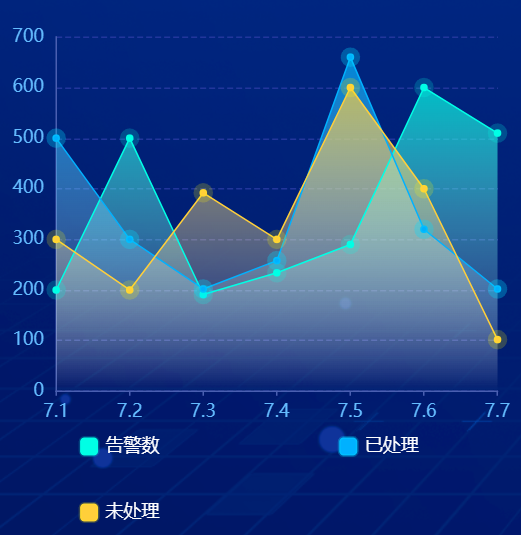
import * as echarts from 'echarts';

export const trendLineOptions = {
  // grid表示表格区域
  grid: {
    left: "3%",
    right: "3%",
    top: "8%",
    bottom: "22%",
    containLabel: true, // grid 区域是否包含坐标轴的刻度标签
  },
  // legend图例
  legend: {
    bottom: '-2%',
    left: '10%',
    width: '100%',
    itemWidth: 12,
    itemHeight: 12,
    itemGap: 30,
    padding: 20,
    orient: 'horizontal',
    icon: "roundRect",
    itemStyle: {
    },
    textStyle: {
      color: '#fff'
    },
    formatter: (name: string) => {
      return name + '                         '
    }
  },
  // tooltip交互axis为线,item为数据项图形触发,主要在散点图,饼图等无类目轴的图表中使用
  tooltip: {
    trigger: "axis",
    axisPointer: {
      type: "line",
      lineStyle: {
        color: "#20FF89",
      },
    },
  },
  xAxis: [
    {
      type: "category",
      boundaryGap: false,
      axisLine: {
        show: true,
        lineStyle: {
          color: '#4a5fb1'
        }
      },
      axisLabel: {
        color: "#64BCFF",
      },
      splitLine: {
        show: false,
      },
      axisTick: {
        length: 3,
      },
      data: ['7.1', '7.2', '7.3', '7.4', '7.5', '7.6', '7.7']
    },
  ],
  yAxis: [
    {
      type: "value",
      splitLine: {
        show: true,
        lineStyle: {
          type: 'dashed',
          color: '#22369c'
        }
      },
      axisLine: {
        show: true,
        lineStyle: {
          color: '#4a5fb1'
        }
      },
      axisLabel: {
        show: true,
        color: "#64BCFF",
      }
    },
  ],
  series: [
    // 第一条折线图
    {
      name: "告警数",
      type: "line",
      smooth: false,  // 是否平滑曲线显示。
      symbol: 'circle',
      symbolSize: 5, // 标记的大小
      showSymbol: true,
      lineStyle: { width: 1 },
      itemStyle: {
        color: "#00ffe5",
        borderWidth: 8,
        borderColor: 'rgba(0, 254, 228, 0.2)'
      },
      // 区域填充样式。设置后显示成区域面积图。
      areaStyle: {
        color: new echarts.graphic.LinearGradient(
          0, 0, 0, 1,
          [
            {
              offset: 0,
              color: "#00ffe5",
            },
            {
              offset: 1,
              color: "rgba(255, 255, 255, 0)",
            },
          ],
          false
        ),
      },
      data: [200, 500, 191, 234, 290, 600, 510],
    },

    // 第二条折线图 (  n 个系列图 )
    {
      name: "已处理",
      type: "line",
      smooth: false,  // 是否平滑曲线显示。
      symbol: 'circle',
      symbolSize: 5, // 标记的大小
      showSymbol: true,
      lineStyle: { width: 1 },
      itemStyle: {
        color: "#00b1ff",
        borderWidth: 8,
        borderColor: 'rgba(0, 218, 255, 0.3)'
      },
      // 区域填充样式。设置后显示成区域面积图。
      areaStyle: {
        color: new echarts.graphic.LinearGradient(
          0, 0, 0, 1,
          [
            {
              offset: 0,
              color: "#00b1ff",
            },
            {
              offset: 1,
              color: "rgba(255, 255, 255, 0)",
            },
          ],
          false
        ),
      },
      data: [500, 300, 202, 258, 660, 320, 202],
    },
    {
      name: "未处理",
      type: "line",
      smooth: false,  // 是否平滑曲线显示。
      symbol: 'circle',
      symbolSize: 5, // 标记的大小
      showSymbol: true,
      lineStyle: { width: 1 },
      itemStyle: {
        color: "#ffcf3a",
        borderWidth: 8,
        borderColor: 'rgba(255, 246, 0, 0.2)'
      },
      // 区域填充样式。设置后显示成区域面积图。
      areaStyle: {
        color: new echarts.graphic.LinearGradient(
          0, 0, 0, 1,
          [
            {
              offset: 0,
              color: "#ffcf3a",
            },
            {
              offset: 1,
              color: "rgba(255, 255, 255, 0)",
            },
          ],
          false
        ),
      },
      data: [300, 200, 392, 300, 600,400, 102],
    },
  ],
}
3.饼图
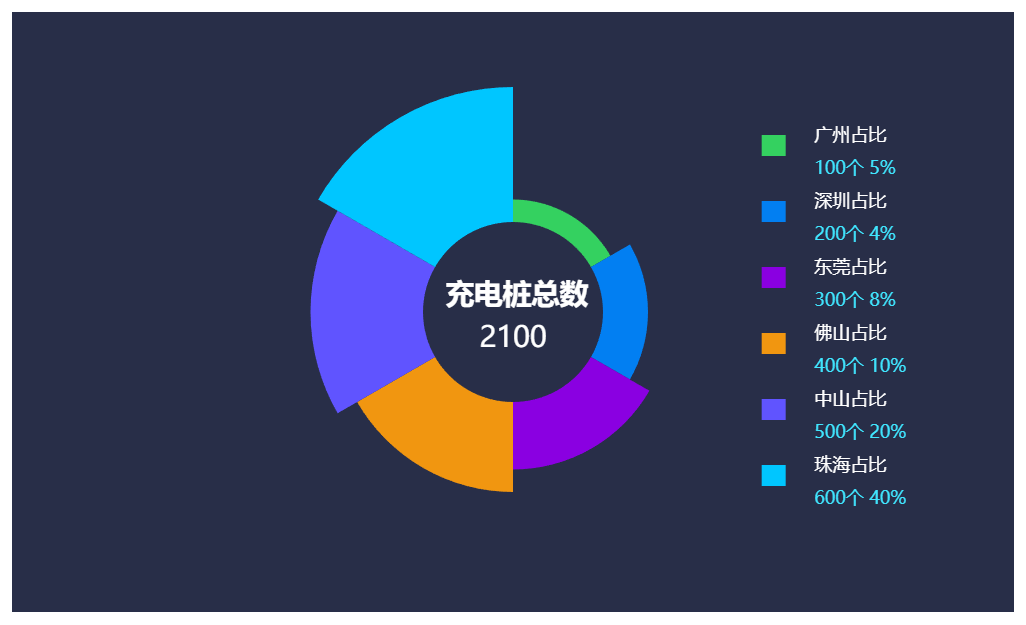
window.onload = function() {
  let myChart = echarts.init(document.getElementById('main'));

  // =====准备数据=====
  let pieDatas = [
    {
      value: 100,
      name: "广州占比",
      percentage: "5%",
      color: "#34D160",
    },
    {
      value: 200,
      name: "深圳占比",
      percentage: "4%",
      color: "#027FF2",
    },
    {
      value: 300,
      name: "东莞占比",
      percentage: "8%",
      color: "#8A00E1",
    },
    {
      value: 400,
      name: "佛山占比",
      percentage: "10%",
      color: "#F19610",
    },
    {
      value: 500,
      name: "中山占比",
      percentage: "20%",
      color: "#6054FF",
    },
    {
      value: 600,
      name: "珠海占比",
      percentage: "40%",
      color: "#00C6FF",
    },
  ];

  // 将 pieDatas 格式的 数据映射为 系列图所需要的数据格式
  let data = pieDatas.map((item) => {
    return {
      value: item.value,
      name: item.name,
      itemStyle: {
        color: item.color,
      },
    };
  });

  // 求出总数
  let total = pieDatas.reduce((a, b) => {
    return a + b.value * 1;
  }, 0);
  // =====准备数据=====

  // 2.指定图表的配置项和数据
  let option = {
    backgroundColor: "rgb(40,46,72)",
    // 标题组件
    title: {
      text: `充电桩总数`,
      top: "50%",
      left: "50%",
      padding: [-20, 0, 0, -45],
      textStyle: {
        fontSize: 19,
        color: "white",
      },
      itemGap: 30, // 调整主副标题之间的间距
      textAlign: 'center', // 横向居中

      // subtext: `2100`,
      // subtextStyle : {
      //   color: 'red'
      // },

      // 副标题使用-富文本语法:{style_name|value}, 注意不能有空格
      subtext: `{totalSty|${total}}`,
      subtextStyle: {
        rich: {
          totalSty: {
            fontSize: 19,
            color: "white",
            width: 90,
            align: "center",
          },
        },
      },
    },

    legend: {
      // 竖向排列
      orient: "vertical",
      right: "10%",
      top: "18%",

      // 图例间隔
      itemGap: 10,
      itemWidth: 16,
      itemHeigth: 16,
      icon: "rect",

      // 自定义图例的名称
      formatter: function (name) {
        // 图例文本格式化 + 富文本定制样式
        var currentItem = pieDatas.find((item) => item.name === name);
        // 注意图例文本样式写法
        return (
          "{nameSty|" +
          currentItem.name +
          "}\n" +
          "{numberSty|" +
          currentItem.value +
          "个 }" +
          "{preSty|" +
          currentItem.percentage +
          "}"
        );
      },
      textStyle: {
        rich: {
          nameSty: {
            fontSize: 12,
            color: "#FFFFFF",
            padding: [10, 14],
          },
          numberSty: {
            fontSize: 12,
            color: "#40E6ff",
            padding: [0, 0, 0, 14],
          },
          preSty: {
            fontSize: 12,
            color: "#40E6ff",
          },
        },
      },
    },
    series: [
      {
        type: "pie",
        center: ["50%", "50%"], // 饼图的中心(圆心)坐标,数组的第一项是横坐标,第二项是纵坐标。
        radius: ["30%", "75%"], // 饼图的半径。数组的第一项是内半径,第二项是外半径。
        label: {
          show: false,
        },
        // data: [  { name: '',   value: '',   itemStyle }  ],
        data: data,
        roseType: "area", //  area 玫瑰图, 圆心角一样,通过半径展现数据大小( 默认为false )
      },
    ],
  };

  myChart.setOption(option);
}
4.环图(饼图radius的配置)
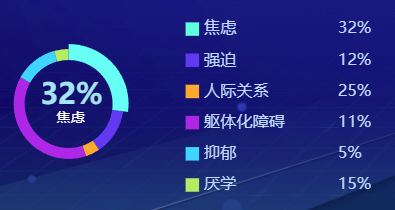
const options = {
  tooltip: {
    trigger: 'item',
    show: false
  },
  legend: {
    selectedMode: false,
    // top: '5%',
    // left: 'center',
    // orient 设置布局方式,默认水平布局,可选值:'horizontal'(水平) ¦ 'vertical'(垂直)
    orient: 'vertical',
    // x 设置水平安放位置,默认全图居中,可选值:'center' ¦ 'left' ¦ 'right' ¦ {number}(x坐标,单位px)
    x: '60%',
    // y 设置垂直安放位置,默认全图顶端,可选值:'top' ¦ 'bottom' ¦ 'center' ¦ {number}(y坐标,单位px)
    y: '40%',
    icon: 'rect', // lengend形状
    itemGap: 15,
    itemWidth: remSize(15), // 设置图例图形的宽
    itemHeight: remSize(15), // 设置图例图形的高
    formatter: (e: any) => {
      let target;
      for (var j = 0; j < legendData.length; j++) {
        if (legendData[j].name === e) {
          target = legendData[j].value;
        }
      }
      let arr = ['{a|' + e + '}', '{b|' + target + '}'];
      //此处的a,b,c是textStyle里面配置的a,b,c,可以自定义
      return arr.join(' ');
    },
    textStyle: {
      //图例文字的样式
      rich: {
        a: {
          width: remSize(80),
          fontSize: remSize(18),
          fontFamily:
            ' Microsoft YaHei-Regular, Microsoft YaHei',
          fontWeight: 400,
          color: '#fff'
        },
        b: {
          fontSize: remSize(18),
          fontFamily:
            ' Microsoft YaHei-Regular, Microsoft YaHei',
          fontWeight: 400,
          color: '#fff'
        }
      }
    }
  },

  series: [
    {
      // name: 'Access From',
      type: 'pie',
      radius: ['60%', '75%'],
      center: ['32%', '50%'],
      avoidLabelOverlap: false,
      itemStyle: {
        borderRadius: 0
        // borderColor: '#0670B4',
        // borderWidth: 5
      },
      //
      label: {
        // 默认不显示,悬浮才显示
        show: false,
        position: 'center',
        formatter: (e: any) => {
          let arr = [
            '{a|' + e.value + '}',
            '\n',
            '{b|' + e.name + '}'
          ];
          //此处的a,b,c是textStyle里面配置的a,b,c,可以自定义
          return arr.join(' ');
        },
        // 环图悬浮显示的文字
        textStyle: {
          //图例文字的样式
          rich: {
            a: {
              padding: [0, 0, 0, 10],
              fontSize: remSize(28),
              align: 'center',
              fontFamily: 'DIN-Bold, DIN',
              fontWeight: 'bold',
              // lineHeight: '32px',
              // textShadow: '0px 0px 12px rgba(0,49,79,0.8)',
              // backgroundColor:
              //   'linear-gradient(180deg, rgba(255,255,255,0.9) 0%, #00E0FF 100%)',
              // backgroundClip: 'text'
              color: '#fff'
            },
            b: {
              padding: [0, 0, 0, 0],
              align: 'center',
              fontSize: remSize(16),
              fontFamily:
                'Microsoft YaHei-Regular, Microsoft YaHei',
              fontWeight: 400,
              color: '#fff'
            }
          }
        }
      },

      // emphasis:设置鼠标放到哪一块扇形上面的时候,扇形样式、阴影
      emphasis: {
        shadowBlur: remSize(20),
        shadowOffsetX: remSize(0),
        shadowColor: 'rgba(30, 144, 255,0.5)',
        label: {
          show: true,
          fontSize: remSize(16),
          fontFamily:
            'Microsoft YaHei-Regular, Microsoft YaHei',
          fontWeight: 400,
          color: '#FFFFFF'
        }
      },

      labelLine: {
        show: false
      },
      data: [
        {
          value: 150,
          name: '男',
          itemStyle: { color: '#00a3ff' }
        },
        {
          value: 172,
          name: '女',
          itemStyle: { color: '#00ffdb' }
        }
      ]
    }
  ]
}
5.地图
ECharts 可以使用 GeoJSON 格式的数据作为地图的轮廓,可以获取第三方的 GeoJSON 数据注册到 ECharts 中:
- https://github.com/echarts-maps/echarts-china-cities-js/tree/master/js/shape-with-internal-borders
- https://datav.aliyun.com/portal/school/atlas/area_selector
1.中国地图引入(json转js引入)
- 引入 geo_json文件,格式化json文件,以变量的形式进行使用

注册需要的地图 GeoJSON (在调 setOption 之前注册即可)
配置显示地图
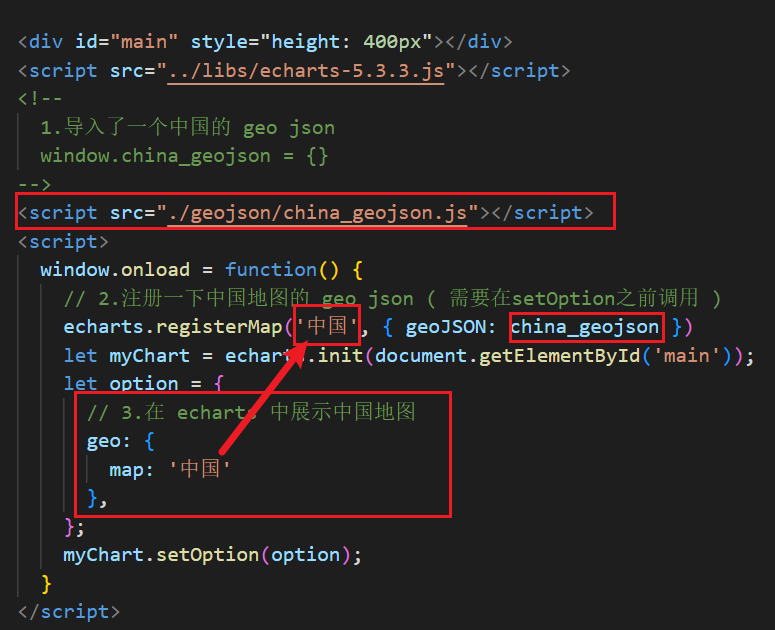
<!DOCTYPE html>
<html lang="en">
<head>
  <meta charset="UTF-8">
  <meta http-equiv="X-UA-Compatible" content="IE=edge">
  <meta name="viewport" content="width=device-width, initial-scale=1.0">
  <title>Document</title>
</head>
<body>

  <div id="main" style="height: 400px"></div>
  <script src="../libs/echarts-5.3.3.js"></script>
  <!--
    1.导入了一个中国的 geo json
    window.china_geojson = {}
  -->
  <script src="./geojson/china_geojson.js"></script>
  <script>
    window.onload = function() {
      // 2.注册一下中国地图的 geo json ( 需要在setOption之前调用 )
      echarts.registerMap('中国', { geoJSON: china_geojson })
      let myChart = echarts.init(document.getElementById('main'));
      let option = {
        // 3.在 echarts 中展示中国地图
        geo: {
          map: '中国'
        },
      };
      myChart.setOption(option);
    }
  </script>
</body>
</html>
2.中国地图引入(js文件方式引入推荐)
<!DOCTYPE html>
<html lang="en">
<head>
  <meta charset="UTF-8">
  <meta http-equiv="X-UA-Compatible" content="IE=edge">
  <meta name="viewport" content="width=device-width, initial-scale=1.0">
  <title>Document</title>
</head>
<body>

  <div id="main" style="height: 400px"></div>
  <script src="../libs/echarts-5.3.3.js"></script>
  <!--
    1.导入了一个中国的js文件(内部进行了register)
  -->
  <script src="./geojson/china.js"></script>
  <script>
    window.onload = function() {
      // 2.注册一下中国地图的 geo json ( 需要在setOption之前调用 )
      let myChart = echarts.init(document.getElementById('main'));
      let option = {
        // 3.在 echarts 中展示中国地图
        geo: {
          map: 'china'
        },
      };
      myChart.setOption(option);
    }
  </script>
</body>
</html>
3.map series展示地图
1.引入 geo_json
2.注册需要的地图 GeoJSON (支持注册多个,也需要引入多个)
3.配置显示地图
4.itemStyle地图着色
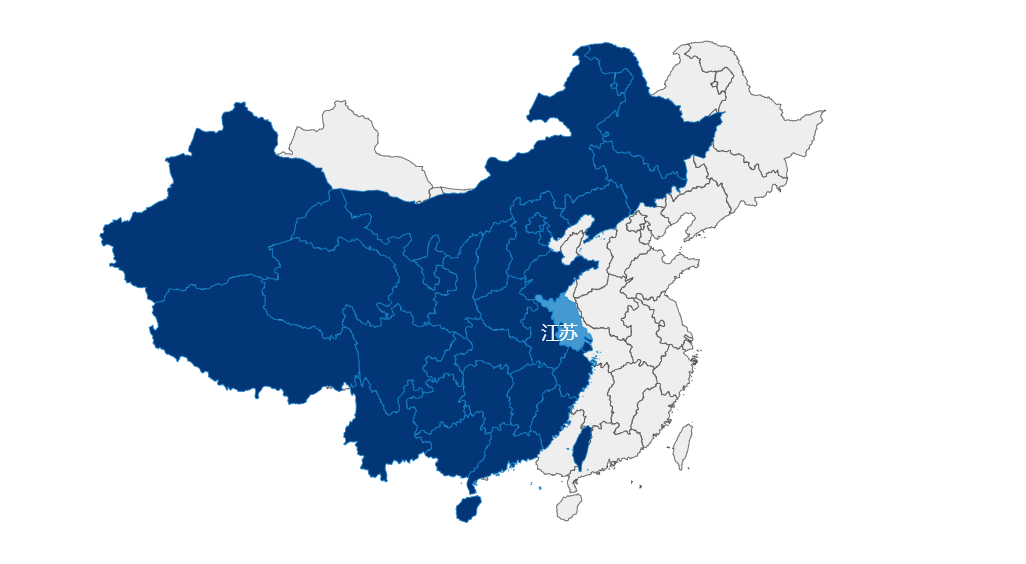
<!DOCTYPE html>
<html lang="en">
<head>
  <meta charset="UTF-8">
  <meta http-equiv="X-UA-Compatible" content="IE=edge">
  <meta name="viewport" content="width=device-width, initial-scale=1.0">
  <title>Document</title>
</head>
<body>

  <div id="main" style="height: 400px"></div>
  <script src="../libs/echarts-5.3.3.js"></script>
  <!--
    1.导入了一个中国的 geo json
    window.china_geojson = {}
  -->
  <script src="./geojson/china_geojson.js"></script>
  <script>
    window.onload = function() {
      // 2.注册一下中国地图的 geo json ( 需要在setOption之前调用 )
      echarts.registerMap('中国', { geoJSON: china_geojson })

      let myChart = echarts.init(document.getElementById('main'));
      let option = {
        // 3.在 echarts 中展示中国地图
        geo: [ // geo创建的地图会被series中的项复用,支持多个
          {
            map: '中国', // 全局的地图( 创建一个地理坐标系统(笛卡尔坐标系,x轴向右,y轴向上), 供其它系列复用该坐标系 )
            roam: true, // 可拖拽
          }
        ],

        series: [
          // series里创建的地图不会被复用
          {
            type: 'map', // 系列图是 地图(创建一个地理坐标系统, 用来展示数据 )
            map: '中国', //
            roam: true,
            // =======地图着色=========
            itemStyle: {
              areaColor: "#023677", // 地图区域的颜色。
              borderColor: "#1180c7", // 图形的描边颜色。
            },

            emphasis: {
              itemStyle: {
                areaColor: "#4499d0",
              },
              label: {
                color: "white",
              },
            },
          }
        ]
      };
      myChart.setOption(option);
    }
  </script>
</body>
</html>
5.地图data数据填充与visualmap视觉映射(数值与颜色深浅的显示)
seriesIndex: [0]
inRange 指定选中范围的视觉元素样式
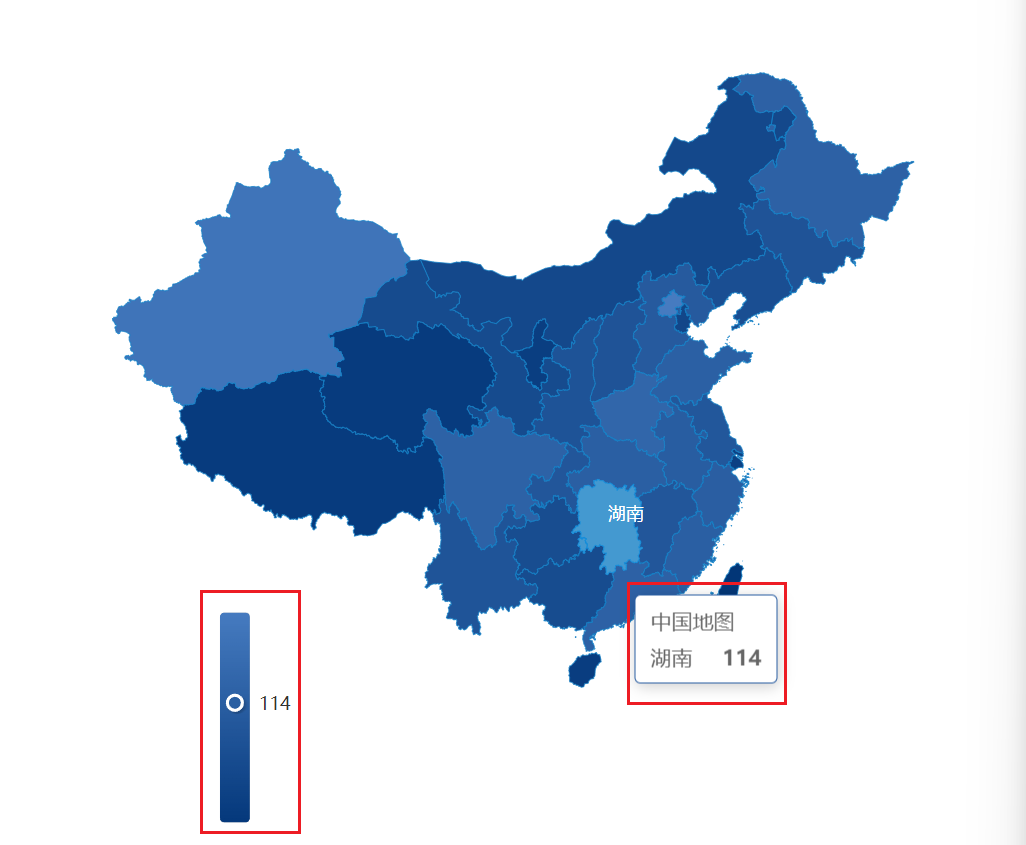
<!DOCTYPE html>
<html lang="en">
  <head>
    <meta charset="UTF-8" />
    <meta http-equiv="X-UA-Compatible" content="IE=edge" />
    <meta name="viewport" content="width=device-width, initial-scale=1.0" />
    <title>Document</title>
    <style></style>
  </head>
  <body>
    <div id="main" style="height: 600px"></div>

    <script src="../libs/echarts-5.3.3.js"></script>
    <script src="./geojson/china_geojson.js"></script>
    <script>
      // 注册地图
      echarts.registerMap("中国", { geoJSON: china_geojson });
      // 1.基于准备好的dom,初始化echarts实例
      var myChart = echarts.init(document.getElementById("main"), null, {
        renderer: "svg",
      });

      var data = [
        { name: "北京", value: 199 },
        { name: "天津", value: 42 },
        { name: "河北", value: 102 },
        { name: "山西", value: 81 },
        { name: "内蒙古", value: 47 },
        { name: "辽宁", value: 67 },
        { name: "吉林", value: 82 },
        { name: "黑龙江", value: 123 },
        { name: "上海", value: 24 },
        { name: "江苏", value: 92 },
        { name: "浙江", value: 114 },
        { name: "安徽", value: 109 },
        { name: "福建", value: 116 },
        { name: "江西", value: 91 },
        { name: "山东", value: 119 },
        { name: "河南", value: 137 },
        { name: "湖北", value: 116 },
        { name: "湖南", value: 114 },
        { name: "重庆", value: 91 },
        { name: "四川", value: 125 },
        { name: "贵州", value: 62 },
        { name: "云南", value: 83 },
        { name: "西藏", value: 9 },
        { name: "陕西", value: 80 },
        { name: "甘肃", value: 56 },
        { name: "青海", value: 10 },
        { name: "宁夏", value: 18 },
        { name: "新疆", value: 180 },
        { name: "广东", value: 123 },
        { name: "广西", value: 59 },
        { name: "海南", value: 14 },
      ];


      // 2.指定图表的配置项和数据
      var option = {

        tooltip: {},
        grid: {},


        // 1.视觉数据映射
        visualMap: [
          {
            // type: "continuous", // 连续型视觉映射组件 (默认)
            // type: "piecewise", // 分段型视觉映射组件
            left: "20%",
            seriesIndex: [0], // 指定取哪个系列的数据
            // 定义 在选中范围中 的视觉元素, 对象类型。
            inRange: {
              color: ["#04387b", "#467bc0"], // 映射组件和地图的颜色(一般和地图色相近)
            },
          },
        ],


        series: [
          {
            name: "中国地图",
            type: "map",
            map: "中国",
            data,
            itemStyle: {
              areaColor: "#023677",
              borderColor: "#1180c7",
            },
            emphasis: {
              itemStyle: { areaColor: "#4499d0" },
              label: { color: "white" },
            },
            select: {
              label: { color: "white" },
              itemStyle: { areaColor: "#4499d0" },
            },
          },
        ],
      };
      myChart.setOption(option);
    </script>
  </body>
</html>
5.散点图
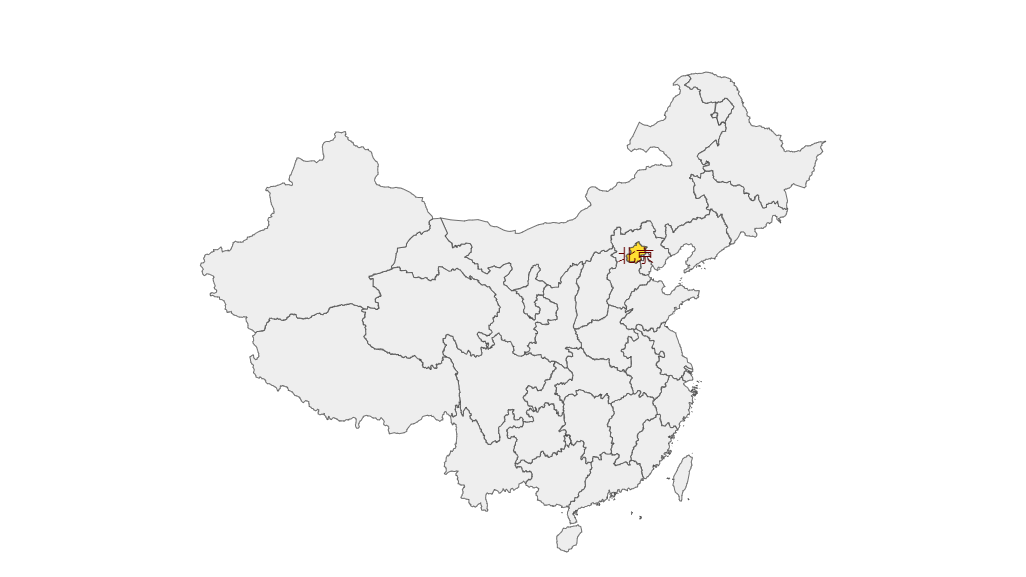
1.地图上散点图的基本用法
1.配置地理坐标系组件( 在 geo 配置)
2.散点图系列
3.散点图复用地图坐标系组件 ( geoIndex )
2.地图散点图+地图的数据
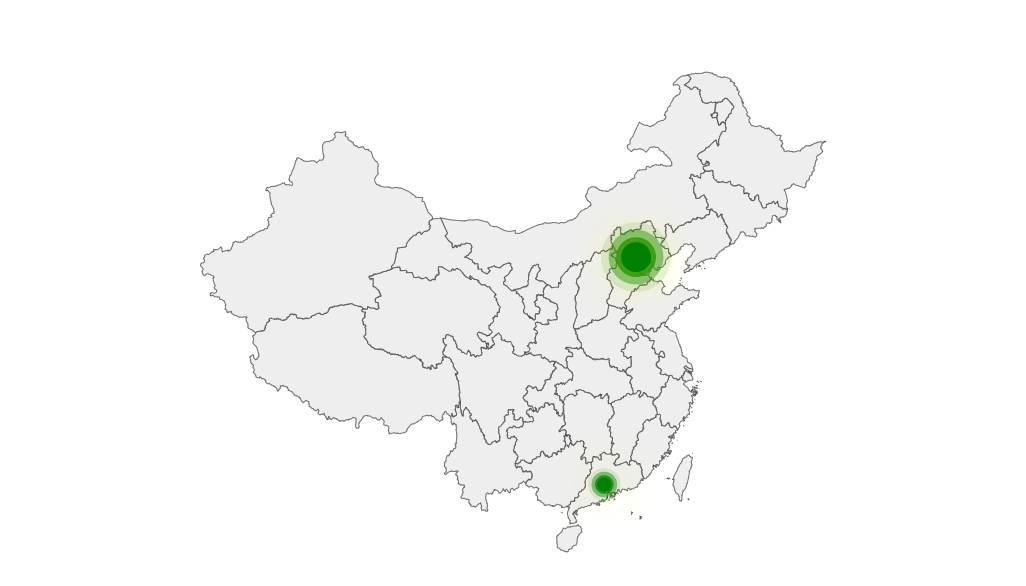
<!DOCTYPE html>
<html lang="en">
<head>
  <meta charset="UTF-8">
  <meta http-equiv="X-UA-Compatible" content="IE=edge">
  <meta name="viewport" content="width=device-width, initial-scale=1.0">
  <title>Document</title>
</head>
<body>

  <div id="main" style="height: 400px"></div>
  <script src="../libs/echarts-5.3.3.js"></script>
  <!--
    1.导入了一个中国的 geo json
    window.china_geojson = {}
  -->
  <script src="./geojson/china_geojson.js"></script>
  <script>
    window.onload = function() {
      // 2.注册一下中国地图的 geo json ( 需要在setOption之前调用 )
      echarts.registerMap('中国', { geoJSON: china_geojson })

      let myChart = echarts.init(document.getElementById('main'));
      let option = {
        // 3.在 echarts 中展示中国地图
       geo: [
        {
          map: '中国'
        }
       ],
       series: [
        {
          name: "散点图",
          type: "effectScatter",

          geoIndex: 0, // geo 支持数组,默认是 0
          coordinateSystem: "geo", // 使用地理坐标系,通过 geoIndex 指定相应的地理坐标系组件。
          data: [
            {
              name: "广东",
              value: [113.280637, 23.125178, 93],
            },
            {
              name: "北京",
              value: [116.405285, 39.904989, 199],
            },
            // {
            //   name: "天津",
            //   value: [117.190182, 39.125596, 99],
            // },
          ],
          // ====== 散点大小和着色========
          symbolSize: function (val) {
            console.log(val) // 拿到data里的每项的value
            return val[2] / 10;  // 控制散点图的大小
          },

          itemStyle: {
            color: "green",
            shadowBlur: 30,
            shadowColor: "yellow",
          },
          // ====== 散点大小和着色========
        }
       ]
      };
      myChart.setOption(option);
    }
  </script>
</body>
</html>
3.地图+散点图案例
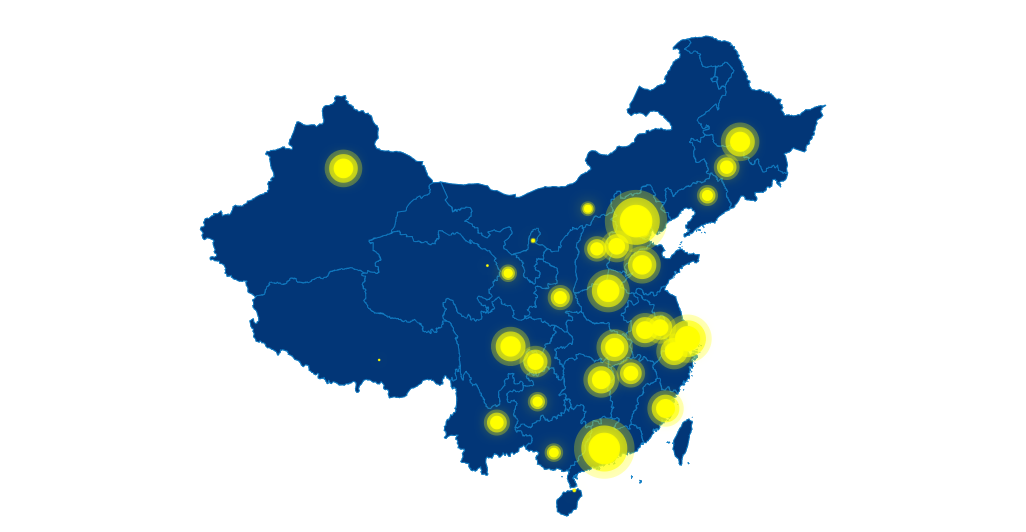
<!DOCTYPE html>
<html lang="en">
<head>
  <meta charset="UTF-8">
  <meta http-equiv="X-UA-Compatible" content="IE=edge">
  <meta name="viewport" content="width=device-width, initial-scale=1.0">
  <title>Document</title>
</head>
<body>

  <div id="main" style="height: 400px"></div>
  <script src="../libs/echarts-5.3.3.js"></script>
  <!--
    1.导入了一个中国的 geo json
    window.china_geojson = {}
  -->
  <script src="./geojson/china_geojson.js"></script>
  <script>
    window.onload = function() {
      let mapName = '中国'
      // 2.注册一下中国地图的 geo json ( 需要在setOption之前调用 )
      echarts.registerMap(mapName, { geoJSON: china_geojson })

      let myChart = echarts.init(document.getElementById('main'));

      var data = [
        { name: "北京", value: 199 },
        { name: "天津", value: 42 },
        { name: "河北", value: 102 },
        { name: "山西", value: 81 },
        { name: "内蒙古", value: 47 },
        { name: "辽宁", value: 67 },
        { name: "吉林", value: 82 },
        { name: "黑龙江", value: 123 },
        { name: "上海", value: 154 },
        { name: "江苏", value: 102 },
        { name: "浙江", value: 114 },
        { name: "安徽", value: 109 },
        { name: "福建", value: 116 },
        { name: "江西", value: 91 },
        { name: "山东", value: 119 },
        { name: "河南", value: 137 },
        { name: "湖北", value: 116 },
        { name: "湖南", value: 114 },
        { name: "重庆", value: 101 },
        { name: "四川", value: 125 },
        { name: "贵州", value: 62 },
        { name: "云南", value: 83 },
        { name: "西藏", value: 9 },
        { name: "陕西", value: 80 },
        { name: "甘肃", value: 56 },
        { name: "青海", value: 10 },
        { name: "宁夏", value: 18 },
        { name: "新疆", value: 120 },
        { name: "广东", value: 193 },
        { name: "广西", value: 59 },
        { name: "海南", value: 14 },
      ];

      // 每个地区对应的经纬度
      var geoCoordMap = {};
      /*获取地图数据*/
      myChart.showLoading();
      // console.log(echarts.getMap(mapName));

      // 1.先拿到地图的 geo json 对象
      var mapFeatures = echarts.getMap(mapName).geoJson.features;
      mapFeatures.forEach(function (v) {
        // 地区名称
        var name = v.properties.name;
        // 地区经纬度
        geoCoordMap[name] = v.properties.cp;
      });
      myChart.hideLoading();
      console.log("data=>", data);
      console.log("geoCoordMap=>", geoCoordMap);

      var convertData = function (data) {
        var res = [];
        for (var i = 0; i < data.length; i++) {
          var geoCoord = geoCoordMap[data[i].name];
          if (geoCoord) {
            res.push({
              name: data[i].name,
              value: [...geoCoord, data[i].value], // [经度, 纬度, 值]
            });
          }
        }
        console.log("res=>", res);
        return res;
      };

      // 2.指定图表的配置项和数据
      var option = {
        tooltip: {}, // 提示框

        // visualMap: {  // 视觉映射组件
        //   left: "20%",
        //   seriesIndex: [0],
        //   inRange: {
        //     color: ["#04387b", "#467bc0"], // 蓝绿
        //   },
        // },

        geo: {  // 注册一个地理坐标系组件( 给散点图用 )
          map: "中国",
          roam: false,
          label: { show: false },
          aspectScale: 0.75,  // 缩放地图
          itemStyle: {
            areaColor: "#023677",
            borderColor: "#1180c7",
          },
          emphasis: {
            itemStyle: { areaColor: "#4499d0" },
            label: { color: "white" },
          },
        },
        series: [
          // 数据填充
          {
            name: "中国地图",
            type: "map",
            map: "中国",
            data,  // 给地图填充数据

            // 地图样式
            itemStyle: {
              areaColor: "#023677",
              borderColor: "#1180c7",
            },
            emphasis: {
              itemStyle: { areaColor: "#4499d0" },
              label: { color: "white" },
            },
            select: {
              label: { color: "white" },
              itemStyle: { areaColor: "#4499d0" },
            },
          },
          // 散点图
          {
            name: "散点图充电桩",
            type: "effectScatter",

            // 散点图使用的坐标系: geo定义的坐标系组件
            geoIndex: 0,
            coordinateSystem: "geo", // 使用地理坐标系,通过 geoIndex 指定相应的地理坐标系组件。

            data: convertData(data),

            symbolSize: function (val) {
              return val[2] / 10;
            },

            itemStyle: {
              color: "yellow",
              shadowBlur: 10,
              shadowColor: "yellow",
            },
            tooltip: {
              show: true,
              trigger: "item",
              formatter: function (params) {
                console.log(params);
                var data = params.data;
                return `${params.seriesName} <div style="margin:5px 0px;"/> ${data.name} ${data.value[2]}`;
              },
            },
          },
        ],
      };

      myChart.setOption(option);
    }
  </script>
</body>
</html>
ECharts API
全局 echarts 对象,在 script 标签引入 echarts.js 文件后获得,或者在 AMD 环境中通过 require('echarts') 获得。
- echarts. init( dom, theme, opts ):创建echartsInstance实例
- echarts. registerMap( mapName, opts ):注册地图
- echarts. getMap( mapName ):获取已注册地图
通过 echarts.init 创建的实例(echartsInstance)
echartsInstance. setOption(opts):设置图表实例的配置项以及数据,万能接口。
echartsInstance. getWidth()、 echartsInstance. getHeight():获取 ECharts 实例容器的宽高度。
echartsInstance. resize(opts):改变图表尺寸,在容器大小发生改变时需要手动调用(监听窗口大小改变时调用)。
echartsInstance. showLoading()、 echartsInstance. hideLoading():显示和隐藏加载动画效果。
echartsInstance. dispatchAction( ):触发图表行为,例如:图例开关、显示提示框showTip等
echartsInstance. dispose:销毁实例,销毁后实例无法再被使用
echartsInstance. on():通过 on 方法添加事件处理函数,该文档描述了所有 ECharts 的事件列表。
1.窗口响应式图表
      // 1.响应式图表
      window.addEventListener("resize", function () {
        console.log("resize"); // 注意不要写死画布的width
        myChart.resize(); // 可以接收一个对象,传递修改后的宽 和 高
        // myChart.resize({ height: "600px" });
      });
2.自动轮播提示框
// 自动轮播图 bar
setInterval(function () {
  autoToolTip();
}, 1000);

let index = 0; // 0-5
function autoToolTip() {
  index++;
  if (index > 5) {
    index = 0;
  }
  // 1.显示提示框
  myChart.dispatchAction({
    type: "showTip", // 触发的action type
    seriesIndex: 0, // 系列的 索引
    dataIndex: index,// 数据项的 索引
    position: "top", // top
  });
}
3.图表点击事件(地图下钻)
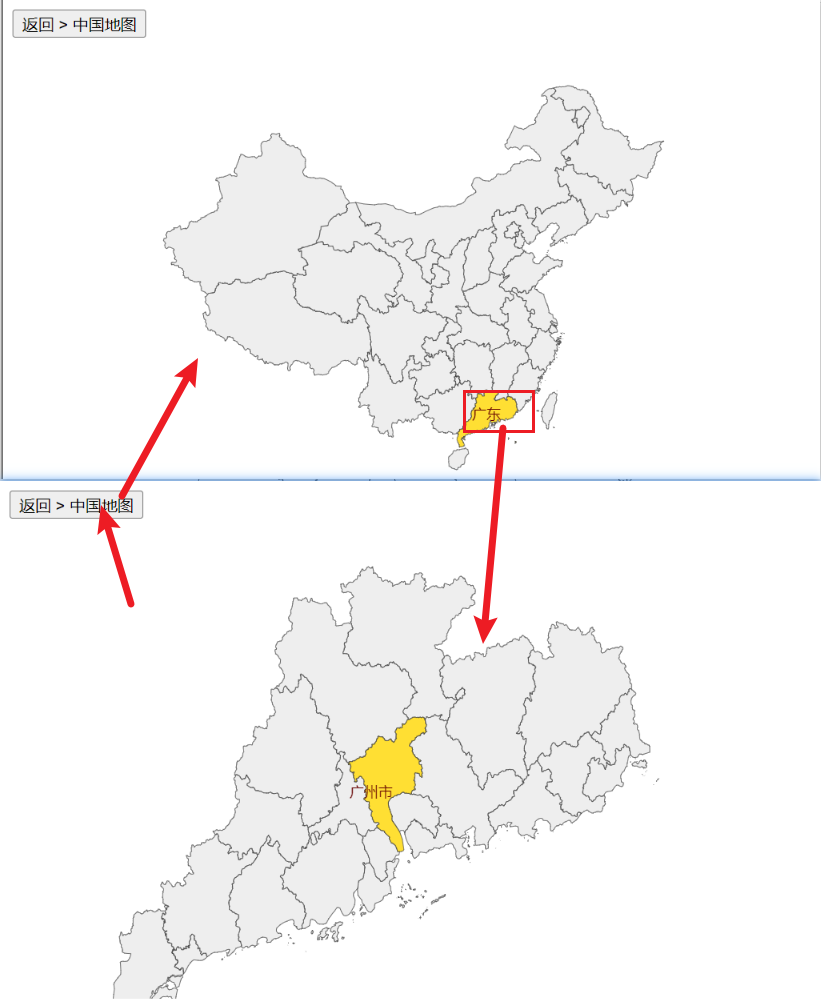
<!DOCTYPE html>
<html lang="en">
<head>
  <meta charset="UTF-8">
  <meta http-equiv="X-UA-Compatible" content="IE=edge">
  <meta name="viewport" content="width=device-width, initial-scale=1.0">
  <title>Document</title>
</head>
<body>
  <button onclick="back()"> 返回 > 中国地图</button>
  <div id="main" style="height: 400px"></div>
  <script src="../libs/echarts-5.3.3.js"></script>
  <!--
    1.导入了中国和广东的 geo json
    window.china_geojson = {}
    window.guangdong_geojson = {}
  -->
  <script src="./geojson/china_geojson.js"></script>
  <script src="./geojson/guangdong_geojson.js"></script>

  <script>
    let myChart = null
    let option = {}
    window.onload = function() {
      echarts.registerMap('中国', { geoJSON: china_geojson })
      myChart = echarts.init(document.getElementById('main'));
      option = {
        // 3.在 echarts 中展示中国地图
        series: [
          {
            type: 'map',
            map: '中国',
            roam: true
          }
        ]
      };
      myChart.setOption(option);

      // 1.地图下钻的功能
      myChart.on('click', function(event) {
        // console.log(event)
        // event.name == 广东
        if(event.name === '广东'){
          if(!echarts.getMap(event.name)){
            console.log('注册地图')
            echarts.registerMap(event.name, { geoJSON: guangdong_geojson})
          }
          option.series[0].map = event.name // 将中国地图切换为广东地图
          myChart.setOption(option)
        }
      })
    }
    function back() {
      option.series[0].map ='中国'
      myChart.setOption(option)
    }
  </script>
</body>
</html>
大屏适配
大屏scss/less方案
webpack.base.js
module.exports = {
  entry: path.join(__dirname, '../src/index.tsx'),
  output: {
    filename: 'js/[name].[chunkhash:8].js',
    path: path.join(__dirname, '../dist'),
    clean: true,
    publicPath: '/'
    // process.env.NODE_ENV === 'development' ? '/' : './'
  },
  cache: {
    type: 'filesystem' // 使用文件缓存
  },
  module: {
    rules: [
      {
        test: /\.(js|mjs|jsx|ts|tsx)$/,
        use: ['thread-loader', 'babel-loader'],
        include: [path.resolve(__dirname, '../src')]
      },
      {
        test: /\.css$/,
        include: [path.resolve(__dirname, '../src')],
        use: [
          isDev
            ? 'style-loader'
            : MiniCssExtractPlugin.loader, // 开发环境使用style-looader,打包模式抽离css
          cssLoader(),
          'postcss-loader'
        ]
      },
      {
        test: /\.less$/,
        include: [path.resolve(__dirname, '../src')],
        use: [
          isDev
            ? 'style-loader'
            : MiniCssExtractPlugin.loader, // 开发环境使用style-looader,打包模式抽离css
          cssLoader(),
          'postcss-loader',
          {
            loader: 'less-loader',
            options: {
              additionalData:
                '@import "~@/utils.less";'
            }
          }
        ]
      },
      {
        test: /\.scss$/,
        include: [path.resolve(__dirname, '../src')],
        use: [
          isDev
            ? 'style-loader'
            : MiniCssExtractPlugin.loader, // 开发环境使用style-looader,打包模式抽离css
          cssLoader(),
          'postcss-loader',
          {
            loader: 'sass-loader',
            options: {
              additionalData:
                '@import "@/default.module.scss";'
            }
          }
        ]
      },
    ]
  },
  resolve: {
    extensions: ['.jsx', '.js', '.tsx', '.ts'],
    alias: {
      '@': path.join(__dirname, '../src')
    },
    modules: [path.resolve(__dirname, '../node_modules')]
  },
  plugins: [
    new HtmlWepackPlugin({
      title: 'xxx',
      template: path.resolve(
        __dirname,
        '../public/index.html'
      ),
      inject: true
    }),
    new webpack.DefinePlugin({
      process: {
        env: {
          BASE_ENV: JSON.stringify(process.env.BASE_ENV),
          NODE_ENV: JSON.stringify(process.env.NODE_ENV),
          BASE_NAME: JSON.stringify(process.env.BASE_NAME)
        }
      }
    })
  ]
};
default.module.scss
$baseWidth: 1920;
$baseHeight: 1080;

$fontBlue: #006cff;
$blue: #2366eb;
$grey: #666666;
$white: #ffffff;

$defaultBackGroundColor: #ffffff;

@function vw($width) {
  @return calc(($width * 100 * 1vw) / $baseWidth);
}

@function vh($height) {
  @return calc(($height * 100 * 1vh) / $baseHeight);
}

@function fontSize($height) {
  @return calc(($height * 100 * 1vh) / $baseHeight);
}

@mixin textOverFlow {
  white-space: nowrap;
  overflow: hidden;
  text-overflow: ellipsis;
}

@mixin center {
  display: flex;
  align-items: center;
  justify-content: center;
}

@mixin columnCenter {
  display: flex;
  align-items: center;
}

@mixin defaultRadius {
  border-radius: vw(4);
}

@mixin defaultShadow {
  box-shadow: 0 0 vw(4) vw(4) rgba(0, 0, 0, 0.05);
}

@mixin pointer {
  cursor: pointer;
}
utils.less
@charset "utf-8";

// 默认设计稿的宽度
@designWidth: 1920;

// 默认设计稿的高度
@designHeight: 1080;

// width、margin左右、padding左右、用
.useDynamicW(@name, @width) {
  @{name}: calc((@width * 100 * 1vw) / @designWidth);
}

// height、line-height、margin上下、padding上下、font-size用
.useDynamicH(@name, @height) {
  @{name}: calc((@height * 100 * 1vh) / @designHeight);
}

// width: calc(100% - vw(200));
.useCalcWidth(@width) {
  width: calc(100% - (@width * 100 * 1vw) / @designWidth)
}

// height: calc(100% - vh(200));
.useCalcHeight(@height) {
  height: calc(100% - (@height * 100 * 1vh) / @designHeight)
}

// 全自动 name 占比 减数 left: calc(50% - vw(65));
.useCalcDynamicW(@name, @propertion, @arg) {
  @{name}: calc(@propertion - (@arg * 100 * 1vw) / @designWidth)
}

.useCalcDynamicH(@name, @propertion, @arg) {
  @{name}: calc(@propertion - (@arg * 100 * 1vh) / @designHeight)
}

.px2vw(@name, @px) {
  @{name}: (@px / @designWidth) * 100vw;
}

.px2vh(@name, @px) {
  @{name}: (@px / @designHeight) * 100vh;
}

.px2font(@px) {
  font-size: (@px / @designWidth) * 100vw;
}
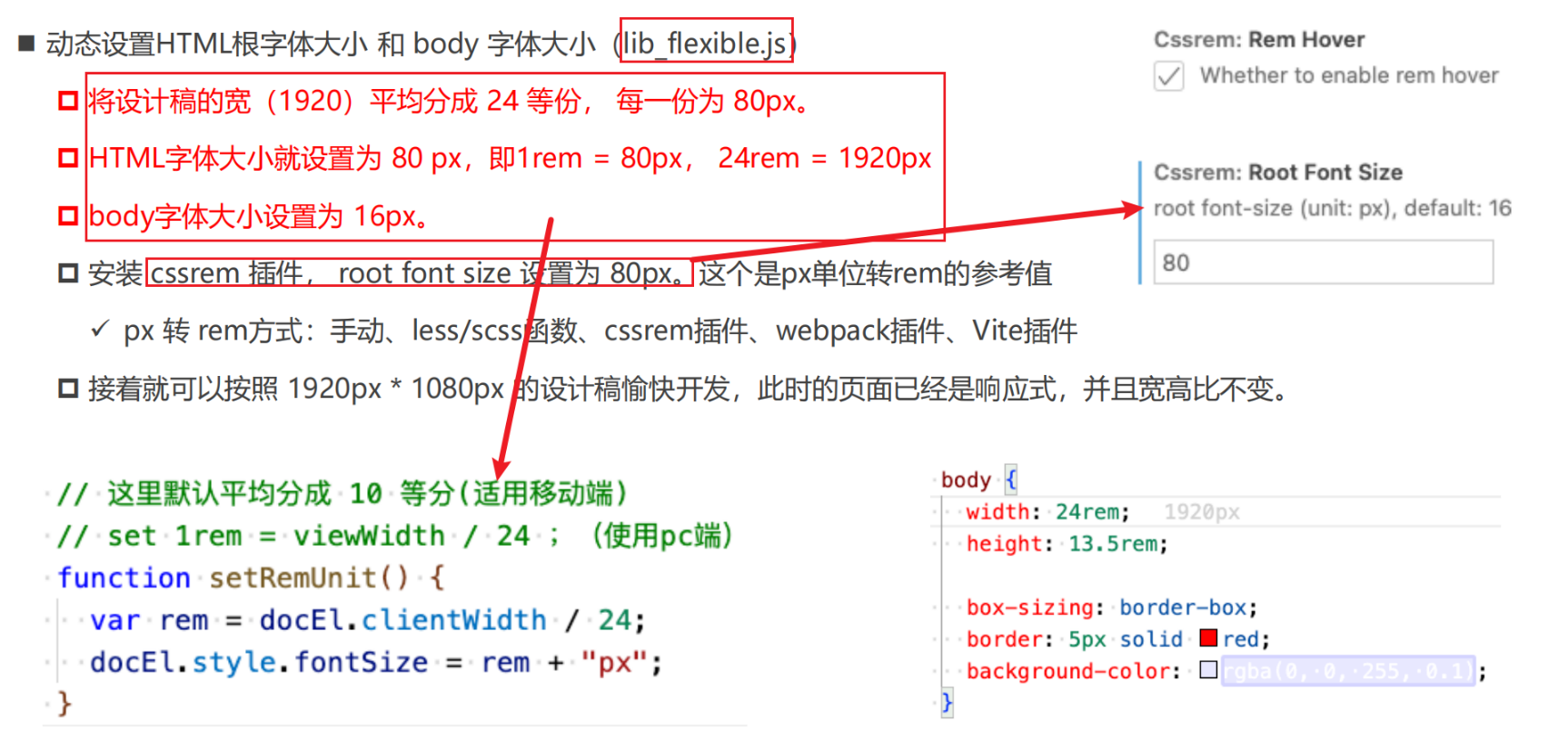
大屏适配方案1 – rem + font-size(lib_flexible.js)
动态设置HTML根字体大小 和 body 字体大小(lib_flexible.js)
将设计稿的宽(1920)平均分成 24 等份, 每一份为 80px。
HTML字体大小就设置为 80 px,即1rem = 80px, 24rem = 1920px
body字体大小设置为 16px。
安装 cssrem 插件, root font size 设置为 80px。这个是px单位转rem的参考值
- px 转 rem方式:手动、less/scss函数、cssrem插件、webpack插件、Vite插件
接着就可以按照 1920px * 1080px 的设计稿愉快开发,此时的页面已经是响应式,并且宽高比不变。
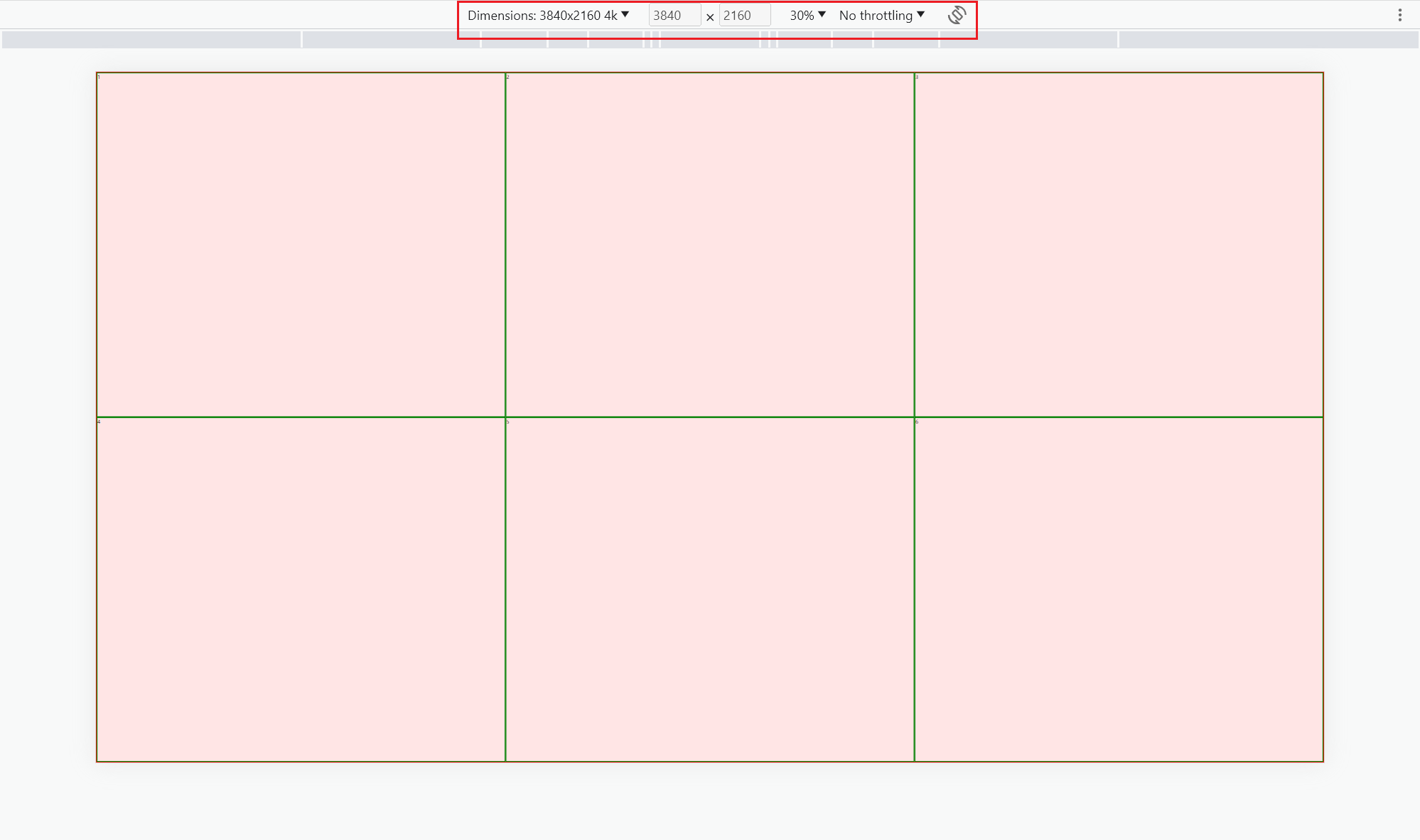
<!DOCTYPE html>
<html lang="en">
  <head>
    <meta charset="UTF-8" />
    <meta http-equiv="X-UA-Compatible" content="IE=edge" />
    <meta name="viewport" content="width=device-width, initial-scale=1.0" />
    <title>Document</title>
    <style>
      body,
      ul {
        margin: 0;
        padding: 0;
      }
      body {
        width: 24rem;
        height: 13.5rem;

        box-sizing: border-box;
        border: 2px solid red;
        background-color: rgba(255, 0, 0, 0.1);
      }

      ul {
        display: flex;
        flex-direction: row;
        flex-wrap: wrap;
        list-style: none;
        width: 100%;
        height: 100%;
      }

      li {
        width: 33.333%;
        height: 50%;
        box-sizing: border-box;
        border: 3px solid green;
        font-size: .375rem;
      }
    </style>
  </head>
  <body>
    <ul>
      <li>1</li>
      <li>2</li>
      <li>3</li>
      <li>4</li>
      <li>5</li>
      <li>6</li>
    </ul>
    <script src="../js/lib_flexible.js"></script>
  </body>
</html>
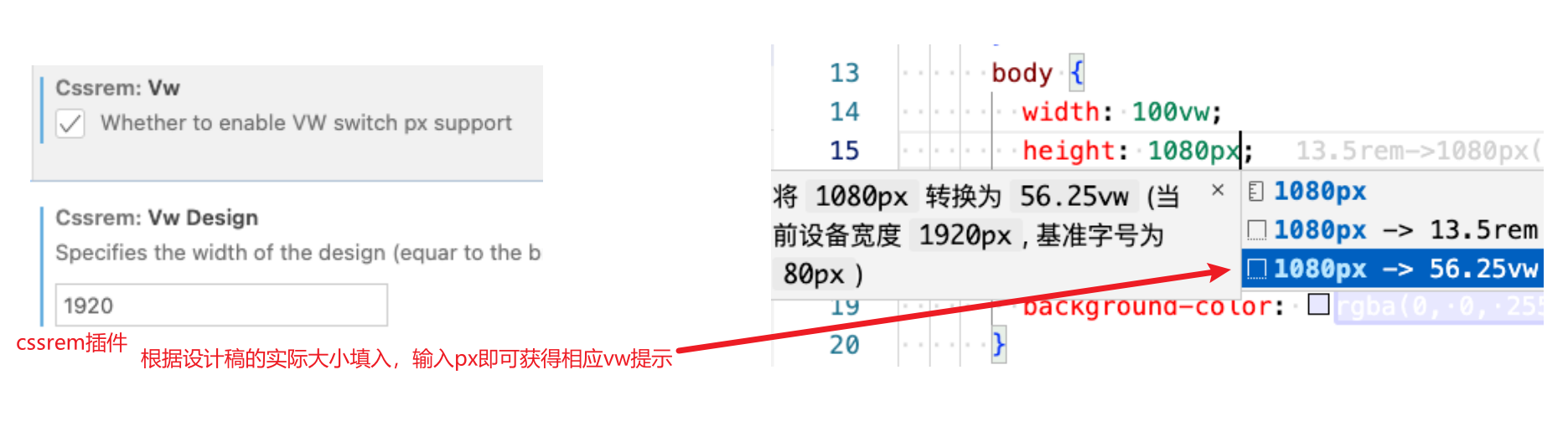
大屏适配方案2 - vw
大屏适配方案3 - 宽高比与scale的缩放
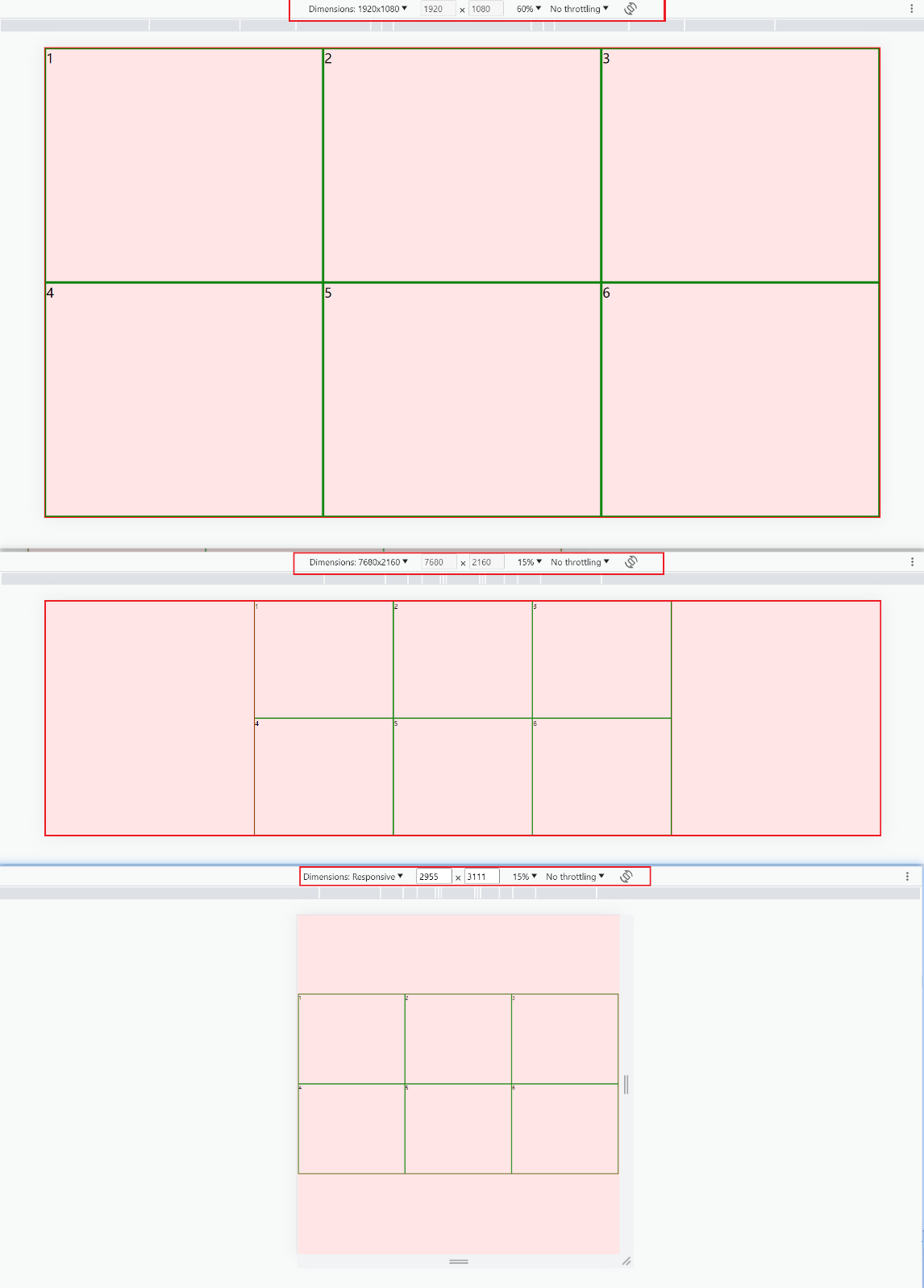
通过实际获取的宽高比进行相应的缩放以及居中展示:
<!DOCTYPE html>
<html lang="en">
  <head>
    <meta charset="UTF-8" />
    <meta http-equiv="X-UA-Compatible" content="IE=edge" />
    <meta name="viewport" content="width=device-width, initial-scale=1.0" />
    <title>Document</title>
    <style>
      body,
      ul {
        margin: 0;
        padding: 0;
      }
      body {
        width: 1920px;
        height: 1080px;

        box-sizing: border-box;
        border: 2px solid red;
        background-color: rgba(255, 0, 0, 0.1);
        /* 规定body的缩放原点 */
        transform-origin: left top;
        position: relative;
      }

      ul {
        display: flex;
        flex-direction: row;
        flex-wrap: wrap;
        list-style: none;
        width: 100%;
        height: 100%;
      }

      li {
        width: 33.333%;
        height: 50%;
        box-sizing: border-box;
        border: 3px solid green;
        font-size: 30px;
      }
    </style>
  </head>
  <body>
    <ul>
      <li>1</li>
      <li>2</li>
      <li>3</li>
      <li>4</li>
      <li>5</li>
      <li>6</li>
    </ul>

    <script>
      window.onload = function () {
        triggerScale();
        window.addEventListener("resize", function () {
          triggerScale();
        });
      };

      function triggerScale() {
        // 设计稿宽高
        const targetX = 1920;
        const targetY = 1080;

        // 获取html或body的宽度和高度(不包含滚动条)
        const currentX = document.documentElement.clientWidth || document.body.clientWidth;
        // https://developer.mozilla.org/en-US/docs/Web/API/Element/clientWidth
        const currentY = document.documentElement.clientHeight || document.body.clientHeight;

        // 1.计算当前屏幕比例
        const currentRatio = currentX / currentY

        const bodyEl = document.querySelector("body");
        // 2.根据比例进行缩放
        // 如果当前屏幕宽高比大于设计稿宽高比->以高度为准进行缩放
        if(currentRatio >= targetX / targetY) {
          const scaleRatio = currentY / targetY
          bodyEl.setAttribute('style', `transform: scale(${scaleRatio}) translateX(-50%);left: 50%;`)
        } else {
          // 如果当前屏幕宽高比小于设计稿宽高比->以宽度为准进行缩放
          const ratio = currentX / targetX;
          bodyEl.setAttribute("style", `transform: scale(${ratio}) translateY(-50%); top: ${currentY / 2}px;`);
        }
      }
    </script>
  </body>
</html>
方案3 > 方案2 > 方案1
大屏适配只推荐第三种方案3
scale相比vw和rem的优势
优势一:相比于vw 和 rem,使用起来更加简单,不需要对单位进行转换,只需考虑屏幕宽高比
优势二:因为不需要对单位进行转换,在使用第三方库时,不需要考虑单位转换问题。
优势三:由于浏览器的字体默认最小是不能小于12px,导致rem或vw无法设置小于12px的字体,缩放没有这个问题。
大屏注意事项
图片模糊问题
- 切图时切1倍图、2倍图,大屏用大图,小屏用小图。
- 建议都使用SVG矢量图,保证放大缩小不会失真。
Echarts 渲染引擎的选择
- 使用SVG渲染引擎,SVG图扩展性更好
动画卡顿优化
- 创建新的渲染层、启用GPU加速(各种3d函数)、善用CSS3形变动画
- 少用渐变和高斯模糊、当不需要动画时,及时关闭动画
性能优化
启用GPU硬件加速、
/* 告知浏览器该元素会有哪些变化属性,让浏览器器提前做好优化的准备*/
will-change: opacity;
高斯模糊换成图片
大屏项目
大屏项目中各个图表请源码查看github仓库

npm init vue@latest安装依赖
- echarts:图表库(Canvas 、SVG)
- countup.js :数据滚动插件
- gsap:javascript动画库
- axios :网络请求库
- normalize.css:统一网页样式
- lodash:JavaScript工具函数库
- sass/less:scss/less 编译器