2022/8/3大约 13 分钟
css记录
滚动条相关
// 去除横向、竖向滚动条
body {
  overflow-x: hidden;
  overflow-y: hidden;
}
// 给某个div添加滚动条
// 要实现滚动条必须先设置好width和height的限制,超过该范围则出现滚动条
// overflow-x overflow-y  设置为auto、scroll或hidden,对应显示或隐藏滚动条
.content {
    width: 100%;
    height: calc(100% - 49px);
    overflow-x: hidden;
    overflow-y: auto;
    &::-webkit-scrollbar { // 滚动条宽高
        width: 6px; // 不要设置width: 0px;不然会出现莫名的padding
        height: 6px;
        // display: none; // 隐藏滚动条
    }
    &::-webkit-scrollbar-track { // 滚动条轨道样式设置
        box-shadow: inset 0 0 0px rgba(240, 240, 240, 0.5);
        border-radius: 10px;
        background-color: #cccccc;
    }
    &::-webkit-scrollbar-thumb { // 滚动条样式设置
        border-radius: 10px;
        box-shadow: inset 0 0 0px rgba(240, 240, 240, 0.5);
        background-color: rgba(148, 148, 148, 0.5);
    }
}
scss/less
// 嵌套使用
.content {
  width: 100px;
  height: 100px;
  &:hover {
    backgroundColor: blue;
  }
}
// 子选择器
.content {
  亲子元素最后一个
  >:nth-last-child { // 表示.content子集里的最后一个元素
  }
  &:nth-child(1) { // 表示与.content同层级的第一个元素
  }
  &:nth-child(2n) {
  }
}
// 同元素不同类的选择
.lg_top_tab_item {
    overflow: hidden;
    flex-wrap: nowrap;
    &.lg_top_tab_active_item {
        background-color: $color;
    }
}
normalize.css的使用(样式的初始化与统一)
npm install --save normalize.css@import "~normalize.css";
@import "~antd/dist/antd.css";
/* 样式的重置 */
body, html, h1, h2, h3, h4, h5, h6, ul, ol, li, dl, dt, dd, header, menu, section, p, input, td, th, ins {
padding: 0;
margin: 0;
}
ul, ol, li {
list-style: none;
}
a {
text-decoration: none;
color: #666;
}
a:hover {
color: #666;
text-decoration: underline;
}
i, em {
font-style: normal;
}
input, textarea, button, select, a {
outline: none;
border: none;
}
table {
border-collapse: collapse;
border-spacing: 0;
}
img {
border: none;
vertical-align: middle;
}
/* 全局样式 */
body, textarea, select, input, button {
font-size: 12px;
color: #333;
font-family: Arial, Helvetica, sans-serif;
background-color: #f5f5f5;
}浏览器样式适配相关
justify-content: right;(flex布局)
- flex布局中,使用justify-content: right;在chrome浏览器可以达到内容靠右的效果,但是在edge浏览器中无效;使用justify-content: flex-end;都可以实现靠右效果;
justify-contet: flex-end;图片展示方式,保持原有尺寸比例(object-fit)
object-fit: cover;
其他补充
a链接seo优化
<a href='#/' >__站点</a>

a {
  display: block;
  width: 40px;
  height: 40px;
  text-indent: -9999px; // 不需要a链接文字显示时,将a链接文字移出屏幕之外,并且不会影响搜索引擎的搜索
}
长英文换行属性css
word-break: break-word; // break-all不区分中英文,全换行
white-space: wrap;
投影方式设置图片(img)颜色(位移)
/* 把原始图片移除box外面, 由于设置了超出部分隐藏, 因此看不见 */
transform: translate(80px);
/*
filter中的drop-shadow,该滤镜可以给图片非透明区域添加投影
-80是因为, 原始图片移动到屏幕外面80px的位置, 它的投影也会跟着走,
因此需要设置-80px, 把投影放到最初的位置
*/
filter: drop-shadow(-80px 0 red);
CSS动画简单实践(animation)(详细请查看该博客下一结)
// 显示tab动画
  // IE Chrome
@keyframes topWrapHover {
    from { flex-shrink: 1 }
    to { flex-shrink: 0; }
}
  // Safari 和 Chrome 通过带有前缀 -webkit-,支持 CSS 动画
@-webkit-keyframes topWrapHover {
    from { flex-shrink: 1 }
    to { flex-shrink: 0; }
}
  // 火狐
@-moz-keyframes topWrapHover {
    from{ flex-shrink: 1 }
    to { flex-shrink: 0; }
}
  // opera
@-o-keyframes topWrapHover {
    from { flex-shrink: 1 }
    to { flex-shrink: 0; }
}

// 隐藏tab动画
@keyframes topWrapUnHover {
    0% { flex-shrink: 0; }
    100% { flex-shrink: 1; }
}
  // Safari 和 Chrome 通过带有前缀 -webkit-,支持 CSS 动画
@-webkit-keyframes topWrapUnHover {
    0% { flex-shrink: 0; }
    100% { flex-shrink: 1; }
}
  // 火狐
@-moz-keyframes topWrapUnHover {
    0% { flex-shrink: 0; }
    100% { flex-shrink: 1; }
}
  // opera
@-o-keyframes topWrapUnHover {
    0% { flex-shrink: 0; }
    100% { flex-shrink: 1; }
}

.class_name { // 为了保证非hover时动画不突变,添加默认动画 !!
  animation: topWrapUnHover 0.14s linear;
  -webkit-animation: topWrapUnHover 0.14s linear;
  -moz-animation: topWrapUnHover 0.14s linear;
  -o-animation: topWrapUnHover 0.14s linear;

  &:hover { /*hover显示动画 !! */
    // IE
    animation: topWrapHover 0.14s linear;
    /*Safari 和 Chrome:*/
    -webkit-animation: topWrapHover 0.14s linear;
    // 火狐
    -moz-animation: topWrapHover 0.14s linear;
    // opera
    -o-animation: topWrapHover 0.14s linear;
    // 动画播放完毕保持结束状态
    animation-fill-mode: forwards;
  }
}
translate、transform、transition、animation的区别与联系
translate:
- 移动,transform一个属性的值
- 改变transform或opacity不会触发浏览器重绘(repaint)和回流(reflow,也叫重排),只会触发复合(componsitions)。而改变绝对定位会触发回流(重排),进而触发重绘和复合。
- 通过translate()方法,元素从其当前位置移动,根据给定的 left(x 坐标) 和 top(y 坐标) 位置参数:
用法transform: translate(50px, 100px);

-ms-transform: translate(50px,100px);

-webkit-transform: translate(50px,100px);

-o-transform: translate(50px,100px);

-moz-transform: translate(50px,100px);- perspective
- 在2D平面产生 近大远小 视觉立体,但是只是效果二维的(可以看到)
- 譬如:translform: translateZ(100px);仅仅是在Z轴上移动,有了透视,就能看到 translateZ引起的变化了(视觉效果变大了)
transform
- transform属性应用于元素的2D和3D转换。这个属性允许你**将元素旋转(rotate)、缩放(scale)、移动(translate)、倾斜(skew)**等
- 单独的transform相当于是突变的效果
CSS3中主要包括 旋转:rotate() 顺时针旋转给定的角度,允许负值 rotate(30deg)

扭曲:skew() 元素翻转给定的角度,根据给定的水平线(X 轴)和垂直线(Y 轴)参数:skew(30deg,20deg)

缩放:scale() 放大或缩小,根据给定的宽度(X 轴)和高度(Y 轴)参数: scale(2,4)

移动:translate() 平移,传进 x,y值,代表沿x轴和y轴平移的距离

所有的2D转换方法组合在一起: matrix()  旋转、缩放、移动以及倾斜元素

matrix(scale.x ,, , scale.y , translate.x, translate.y)
// 不用matrix也可以将各种变换方法分开使用,如下
transform: rotate(0deg) scale(1, 1) skew(0deg, 0deg) translate(0px, 0px);
transform: rotate3d(x, y, z, deg);
transform-style: flat | preserve-3d;
- flat表示所有子元素在2D平面呈现
- preserve-3d表示所有子元素在3D空间中呈现
transform+perspective+transform-style+rotate实现3D导航栏效果应用
- 结合空间想象,理解下列代码
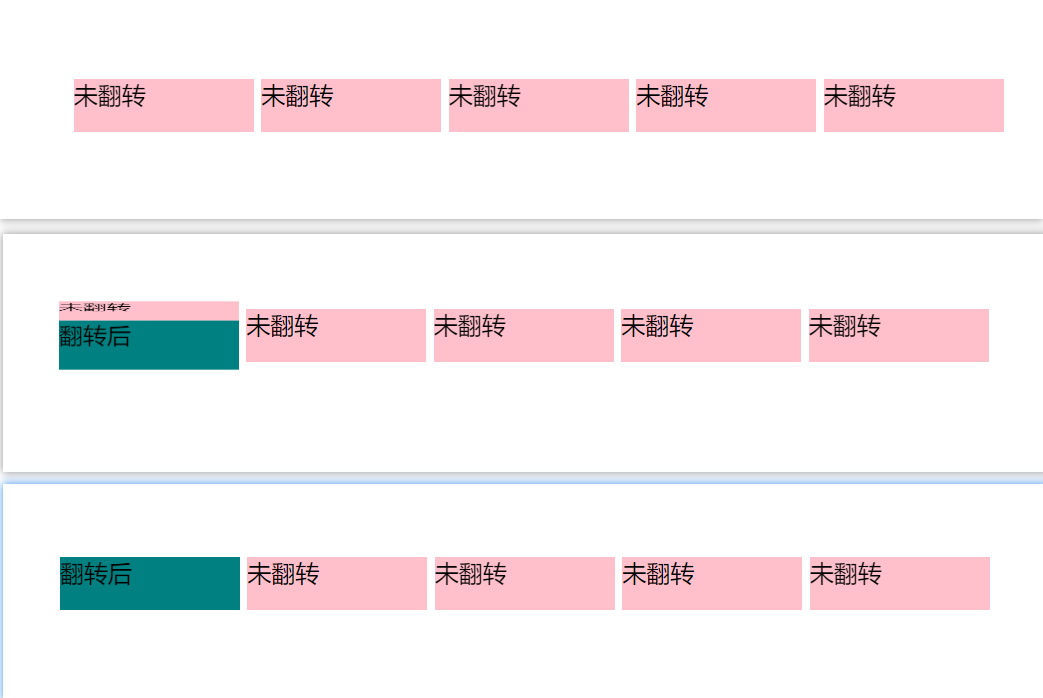
<!DOCTYPE html>
<html lang="en">
<head>
  <meta charset="UTF-8">
  <meta http-equiv="X-UA-Compatible" content="IE=edge">
  <meta name="viewport" content="width=device-width, initial-scale=1.0">
  <title>Document</title>
  <style>
    * {
      margin: 0;
      padding: 0;
      box-sizing: border-box;
    }
    ul {
      margin: 100px;
      display: flex;
      justify-content: center;
      align-items: center;
    }

    ul li {
      width: 120px;
      height: 35px;
      margin-right: 5px;
      list-style: none;
    }

    .box {
      width: 100%;
      height: 100%;
      position: relative;
      transform-style: preserve-3d;
      transition: all 0.3s;
    }

    .box:hover {
      transform: rotateX(90deg);
    }

    .front, .bottom {
      position: absolute;
      width: 100%;
      height: 100%;
    }

    .front {
      transform: translateZ(17.5px);
      background-color: pink;
    }

    .bottom {
      /* 注意书写的先后顺序 */
      /* 注意:translateY的Y轴是向下的 */
      transform: translateY(17.5px) rotateX(-90deg);
      background-color: teal;
    }
  </style>
</head>
<body>
  <ul>
    <li>
      <div class="box">
        <div class="front">未翻转</div>
        <div class="bottom">翻转后</div>
      </div>
    </li>
    <li>
      <div class="box">
        <div class="front">未翻转</div>
        <div class="bottom">翻转后</div>
      </div>
    </li>
    <li>
      <div class="box">
        <div class="front">未翻转</div>
        <div class="bottom">翻转后</div>
      </div>
    </li>
    <li>
      <div class="box">
        <div class="front">未翻转</div>
        <div class="bottom">翻转后</div>
      </div>
    </li>
    <li>
      <div class="box">
        <div class="front">未翻转</div>
        <div class="bottom">翻转后</div>
      </div>
    </li>
  </ul>
</body>
</html>
transition
- transition允许css属性值在一定的时间区间内平滑的过渡,需要事件的触发(重点区别),例如单击、获取焦点、失去焦点等;
- transition可结合事件触发和transform结合,达到可调整transform触发效果延长、延迟触发、触发快慢等效果;
- transition可以给多个css属性设置过渡效果,以,分隔即可;也可设置为all给所有属性添加过渡效果,设置为none取消所有过渡效果;
- transition结合transform相当于是有两个关键帧的动画
- transition常见触发方式:
- 伪类触发
- :hover : focus :checked :active
- 伪类触发
transition: property duration timing-function delay;

property: CSS的属性,例如:width height 为**none**时停止所有的运动,可以为transform

duration: 持续时间

timing-function: ease等

delay: 延迟

注意:当property为all的时候所有动画

例如:transition: width 2s ease 0s;- 单边过渡与双边过渡取决于将transition放的位置
// 双边过渡
.box {
  background: red;
  width: 200px;
  transition: background 2s linear 0s, transform 2s linear 0s;

  &:hover {
    transform: scale(2, 1), rotate;
    background: blue;
  }
}
// 单边过渡
.box {
  background: red;
  width: 200px;

  &:hover {
    transform: scale(2, 1), rotate;
    background: blue;
    transition: background 2s linear 0s, transform 2s linear 0s;
  }
}
animation
- **animation属性结合@keyframes(定义关键帧)**使用,animation中的animation-name需要设置成@keyframes的name一致。
- @keyframes可以用0%、50%、100%来定义使用,也可以用from、to来定义关键帧
- @keyframes中的每一个关键帧相当于一个小动画,当达到该帧后,如后续帧无相关属性,则缓慢回退到原来的效果
@keyframes changeText {
  50% {
    font-size: 18px;
    background-color: red;
  }
}- animation属性语法
animation { 动画名  }
animation{ animation-name animation-duration animation-timing-function animation-delay animation-iteration-count animation-direction animtion-play-state animation-fill-mode}- animation前五个属性:五件套:动画名、动画持续时间、动画速率、动画延时、播放次数
- animation-direction主要用来设置动画播放方向,其主要有两个值:
- normal 默认值,如果设置为normal时,动画每次循环都是向前(即按顺序)播放
- alternate(轮流),动画播放在第偶数次向前播放,第奇数次向反方向播放(animation-iteration-count取值大于1时设置有效)
- animation-play-state:属性是用来控制元素动画的播放状态。其主要有两个值:
- running,可以通过该值将暂停的动画重新播放,这里的重新播放不是从元素动画的开始播放,而是从暂停的那个位置开始播放。
- paused,暂停播放
- 使用animtion-play-state属性,当元素动画结束后,元素的样式将默认回到最原始设置状态(这也是为什么要引入animation-fill-mode属性的原因)
- animation-fill-mode默认情况下,动画结束后,元素的样式将回到起始状态,animation-fill-mode属性可以控制动画结束后元素的样式。主要具有四个属性值:
- none: 默认回到初始状态
- forwards:动画结束后动画停留在结束状态
- backwords:动画回到第一帧状态,主要控制第一帧,**动画开始前,元素的样式将设置为动画的第一帧的样式。**有设置延时时效果明显
- both:根据animation-direction轮流。应用forwards和backwards规则,获取第一帧动画,保持最后一帧动画
// 示例
.box {
  display: inline-block;
  line-height: 20px;
  position: absolute;
  left: 0px;
  top: 10px;
  animation: changeText 5s linear 0s 3 alternate running forwards;

  &:hover {
    animation-play-state: paused;
  }
}
CSS3新特性
- 新增css选择器:
:not(.className) { // 所有class不是className的元素
}- 圆角:(border-radius: 4px);
- 多列布局:(multi-column layout)
- 阴影和反射:(Shadoweflect)
- 文字特效:(text-shadow)
- 文字渲染:(text-decoration)
- 线性渐变:(gradient)
- 旋转:(transform) 增加了旋转,缩放,定位,倾斜,动画,多背景
浏览器兼容问题
- CSS3针对不同浏览器内核兼容写法:
- -webkit- 针对webkit内核()
- -moz- 针对火狐内核
- -ms- 针对IE内核
- -o- 针对opera内核
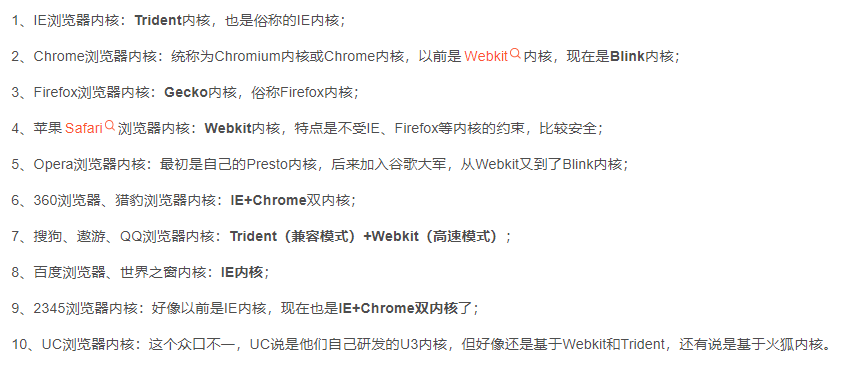
- 常见浏览器使用的内核(2022-04)
浏览器解析CSS选择器
- CSS选择器的解析是从右向左解析的。若从左向右的匹配,发现不符合规则,需要进行回溯,会损失很多性能。
- 若从右向左匹配,先找到所有的最右节点,对于每一个节点,向上寻找其父节点直到找到根元素或满足条件的匹配规则,则结束这个分支的遍历。
input可以对应的type值

DOCTYPE(⽂档类型) 的作⽤
DOCTYPE是HTML5中一种标准通用标记语言的文档类型声明,它的目的是告诉浏览器(解析器)应该以什么样(html或xhtml)的文档类型定义来解析文档,不同的渲染模式会影响浏览器对 CSS 代码甚⾄ JavaScript 脚本的解析。它必须声明在HTML⽂档的第⼀⾏。
浏览器渲染页面的两种模式(可通过document.compatMode获取)
- CSS1Compat:标准模式(Strick mode) ,默认模式,浏览器使用W3C的标准解析渲染页面。在标准模式中,浏览器以其支持的最高标准呈现页面。
<!DOCTYPE html>- BackCompat:怪异模式(混杂模式)(Quick mode) ,浏览器使用自己的怪异模式解析渲染页面。在怪异模式中,页面以一种比较宽松的向后兼容的方式显示。
<!DOCTYPE xhtml>
meta标签常见属性及用法
- meta标签由name和content属性定义,用来描述网页文档的属性,比如网页的作者、网页描述、关键词等,除了HTTP标准固定了一些name作为大家使用的共识,开发者还可以自定义name;
- name定义了content描述的内容类型;
- 常用的meta标签:charset,用来描述HTML文档的编码类型;
<meta charset="utf-8" />- keywords,页面关键词:
<meta name="keywords" content="关键词" />- description,页面描述:
<meta name='description' content="页面描述内容" />- refresh,页面重定向和刷新:
<meta http-equiv="refresh" content="0;url=" />viewport,适配移动端,可以控制视口的大小和比例:
viewport对应的content参数有以下几种:
width viewport:宽度(数值/device-width)height viewport:高度(数值/device-height)initial-scale:初始缩放比例maximum-scale:最大缩放比例minimum-scale:最小缩放比例user-scalable:是否允许用户缩放(yes/no)
<meta name="viewport" content="width=device-width, initial-scale=1, maximum-scale=1" />- robots,搜索引擎索引方式:
- robots对应的content参数有以下几种:
all:文件将被检索,且页面上的链接可以被查询;none:文件将不被检索,且页面上的链接不可以被查询;index:文件将被检索;follow:页面上的链接可以被查询;noindex:文件将不被检索;nofollow:页面上的链接不可以被查询;
- robots对应的content参数有以下几种:
<meta name="robots" content="index,follow" />BFC触发解决高度坍塌、边距重叠问题
常用overflow: hidden;但是触发 BFC 也不止是只有这一种方法。
如上面写的所示,可以设置float: left;,float: right;,display: inline-block;,overflow: auto;,display: flex;,display: table;,position 为 absolute 或 fixed 等等,这些都可以触发,不过父元素宽度表现不一定相同,但父元素高度都被撑出来了。
全局变灰
  -webkit-filter: grayscale(1);
  -moz-filter: grayscale(1);
  -ms-filter: grayscale(1);
  -o-filter: grayscale(1);
  filter: grayscale(1);
line-height: 1;与font-size的关系
font-size: 12px;
line-height: 1; // 表示一个font-size的大小,=== line-height: 12px;

// normalize.css设置的line-height为1.15
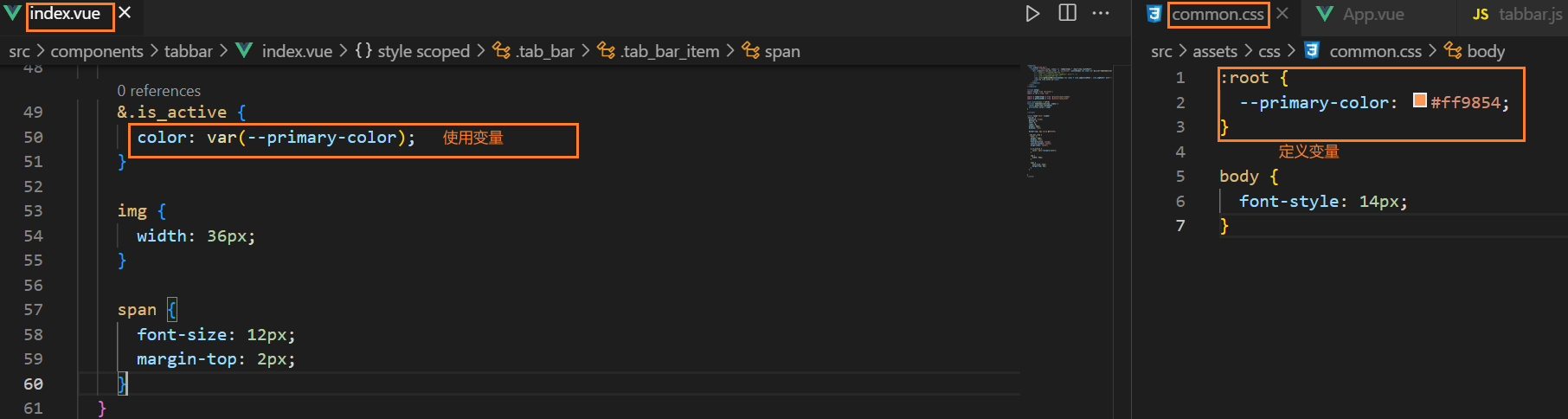
less css变量的使用
:root {
  --primary-color: #ff9854;
  --van-search-left-icon-color: var(--primary-color) !important;
  --van-tabs-bottom-bar-color: var(--primary-color) !important;
  --van-nav-bar-icon-color: var(--primary-color) !important;
}
less混入
选择器混入
.textEllipsis {
    white-space: nowrap;
    overflow: hidden;
    text-overflow: ellipsis;
}
.abc {
    .textEllipsis();
}
函数混入
.box() {
    width: 50px;
    height: 50px;
}

.abc {
    .box();
}

// 函数混入+传递变量
.box(@width) {
    width: @width;
    height: @width;
}

.abc {
    .box(100px);
}
sass变量的使用
// 获取电脑屏幕宽高
calc(100vw);
calc(100vh);
// $变量的使用
$color: red;
.content {
  color: $color;
}
$side: bottom;
.content {
  border-#{$side}: 1px solid red;
}
sass中minxin混合样式
// 定义混合
@mixin normalFlex ($direction: row, $justify: space-between){
	display: flex;
	flex-direction: $direction;
	justify-content: $justify;
}

@mixin textEllipsis() {
	white-space: nowrap;
	overflow: hidden;
	text-overflow: ellipsis;
}
.box {
@include normalFlex();
}
text {
@include textEllipsis();
}按钮点击样式
.button {
  &:active {
    opacity:0.8;
  }
}
html节点语法
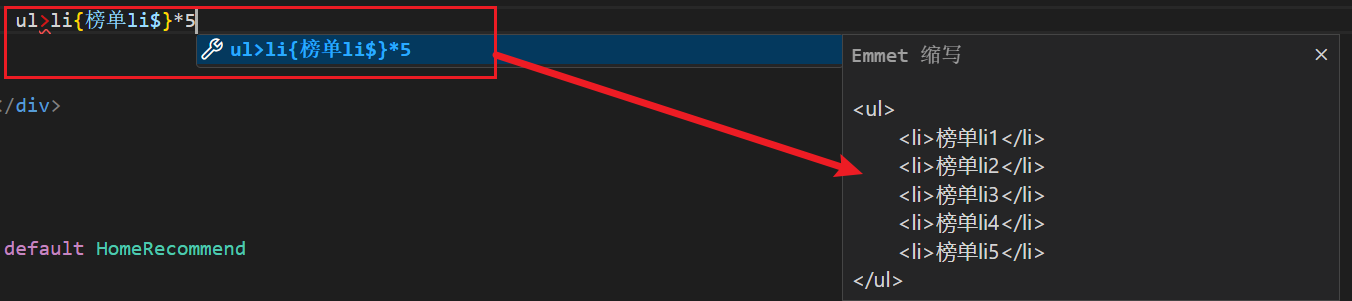
ul>li{榜单li$}*5